Read, discard, and deploy configuration changes
Read all device configurations
This task allows you to synchronize device configurations when changes have been made to devices outside of Security Cloud Control, ensuring that Security Cloud Control's copy matches the device's local configuration.
If a configuration change is made to a device outside of Security Cloud Control, the device configuration stored on Security Cloud Control and the device's local copy of its configuration are no longer the same. You many want to overwrite Security Cloud Control's copy of the device's configuration with the configuration stored on the device to make the configurations the same again. You can perform this task on many devices simultaneously using the Read All link.
For more information about how Security Cloud Control manages the two copies of the device configuration, refer to Reading, Discarding, Checking for, and Deploying Configuration Changes.
Here are three configuration statuses where clicking Read All will overwrite Security Cloud Control's copy of the device's configuration with the device's copy of the configuration.
-
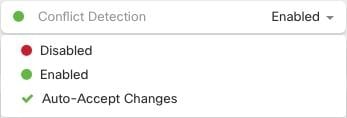
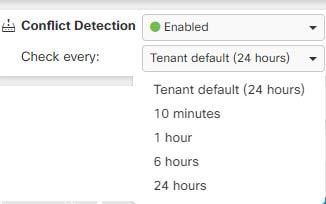
Conflict Detected: If conflict detection is enabled, Security Cloud Control polls the devices it manages every 10 minutes for changes made to their configurations. If Security Cloud Control finds that the configuration on the device has changed, Security Cloud Control displays a "Conflict detected" configuration status for the device.
-
Synced: If the device is in a synced state, and you click Read All, Security Cloud Control immediately checks the devices to determine if there have been any changes made to its configurations directly. After clicking Read All, Security Cloud Control confirms your intent to overwrite its copy of the device's configuration and then Security Cloud Control performs the overwrite.
-
Not Synced: If the device is in the Not Synced state, and you click Read All, Security Cloud Control warns you that there are pending changes made to the device's configuration using Security Cloud Control and that proceeding with the Read All operation will delete those changes and then overwrite Security Cloud Control's copy of the configuration with the configuration on the device.
Procedure
|
Step 1 |
Choose . |
|
Step 2 |
Click the Devices tab. |
|
Step 3 |
Click the appropriate device type tab. |
|
Step 4 |
Select the devices whose configurations you want to save in Security Cloud Control. Security Cloud Control only provides command buttons for actions that can be applied to all the selected devices. Security Cloud Control warns you if there are configuration changes staged on Security Cloud Control for any of the devices you selected and asks if you want to continue with the bulk reading configurations action. |
|
Step 5 |
Click Read All to continue. |
|
Step 6 |
If you created and activated a change request label, remember to clear it so that you don't inadvertently associate other configuration changes with this event. |
The device configurations are read from the selected devices and Security Cloud Control's copy of the configurations is updated to match the local device configurations.
Configuration reading from ASA to Security Cloud Control
Configuration reading is a management process that
-
enables Security Cloud Control to maintain its own copy of the ASA running configuration file for device management
-
occurs during device onboarding when Security Cloud Control reads and saves a copy of the device configuration file for the first time, and
-
provides options to Check for Changes, Accept without Review, or Read Configuration when reading configurations from an ASA.
When Security Cloud Control needs to read ASA configurations
Security Cloud Control needs to read an ASA configuration in these circumstances:
-
When deployment of configuration changes to the ASA fails and the device state is not listed or Not Synced.
-
When device onboarding fails and the device state is No Config.
-
When changes are made to the device configuration outside of Security Cloud Control and those changes have not yet been polled or detected. In this case, the device state is Synced or Conflict Detected.
In these cases, Security Cloud Control needs a copy of the last known configuration stored on the device.
For more information, refer to Reading, Discarding, Checking for, and Deploying Configuration Changes.
Read configuration changes on ASA device
This task enables you to manually synchronize your ASA device with Security Cloud Control to resolve onboarding or deployment failures.
Use this procedure when you need to resolve onboarding failures or deployment issues by reading configuration changes directly from your ASA device.
Follow these steps to read configuration changes on your ASA device:
Procedure
|
Step 1 |
Choose Inventory. |
|
Step 2 |
Choose . |
|
Step 3 |
Click the Devices tab. |
|
Step 4 |
Click the appropriate device type tab. |
|
Step 5 |
Select the device that Security Cloud Control has recently failed to onboard, or select the device where Security Cloud Control could not deploy a change. |
|
Step 6 |
Click Read Configuration in the Synced pane. This option overwrites the configuration currently saved to Security Cloud Control. |
The device configuration is read from the ASA device and synchronized with Security Cloud Control, resolving onboarding or deployment failures.
Configuration change reading from FDM-Managed devices to Security Cloud Control
Configuration change reading from FDM-Managed devices to Security Cloud Control is a management process that
-
enables Security Cloud Control to maintain its own stored copy of the FDM-managed device's configuration in its database
-
takes a copy of the FDM-managed device's deployed configuration during onboarding and periodic synchronization, and
-
detects and manages configuration conflicts between device and Security Cloud Control stored configurations.
Configuration management requirements
In order to manage an FDM-managed device, Security Cloud Control must have its own stored copy of the FDM-managed device's configuration. The first time Security Cloud Control reads and saves a copy of the device's configuration file is when the device is onboarded. See Reading, Discarding, Checking for, and Deploying Configuration Changes for more information.
Configuration changes made to the FDM-managed device directly through the Firepower Device Manager (FDM) or its CLI are referred to as staged changes on the FDM-managed device until they are deployed. A staged, or pending, change can be edited or deleted without having any affect on traffic running through the FDM-managed device. Once the pending changes are deployed, however, they are enforced by the FDM-managed device and affect traffic running through the device.
If you enable Conflict Detection on the device, Security Cloud Control checks for configuration changes every 10 minutes. If the copy of the configuration stored on the device has changed, Security Cloud Control notifies you by displaying the "Conflict Detected" configuration status. If you do not have Conflict Detection enabled, or a change has been made to the device's configuration within the 10 minute interval between automatic polling, clicking Check for Changes prompts Security Cloud Control to immediately compare the copy of the configuration on the device with the copy of the configuration stored on Security Cloud Control. You can choose to Review Conflict to examine the differences between the device configuration and the configuration saved to Security Cloud Control, then select Discard Changes to remove the staged changes and revert to the saved configuration or confirm the changes. You can also choose to Accept without Review; this option takes the configuration and overwrites what is currently saved to Security Cloud Control.
Discard changes procedure
This task allows you to discard pending configuration changes when conflicts are detected on the FDM-managed device, resolving configuration discrepancies between the device and Security Cloud Control.
Use this procedure when your device configuration is set to Conflict Detected and you need to revert pending changes to synchronize configurations between the device and Security Cloud Control.
Procedure
|
Step 1 |
In the left pane, click Inventory. |
||
|
Step 2 |
In the left pane, click . |
||
|
Step 3 |
Click the Devices tab. |
||
|
Step 4 |
Click the appopriate device type tab. |
||
|
Step 5 |
Select the device whose configuration is set to Conflict Detected and gives you the link to Revert Pending Changes. The message explains that you can click the link to revert pending changes or you can log on to the device using the local manager FDM and deploy the changes first.
|
||
|
Step 6 |
Review the changes on FDM before clicking Revert Pending Changes:
|
The configuration conflict is resolved. Either the pending changes are discarded and configurations are synchronized, or the changes are deployed and you can proceed with conflict resolution through polling for changes.
Tip: review pending changes when revert fails
Changes to the system databases and security feeds can't be reverted by Security Cloud Control. Security Cloud Control recognizes that there are pending changes, attempts to revert them and then fails. To determine if the revert failure is
due to pending database updates or security feed updates, log into the device's FDM console. It will have an orange circle
indicating that there are changes ready to deploy  . Click the deploy button to review the pending changes and deploy them or discard them as is appropriate.
Review conflict procedure
Review configuration changes from the FDM-managed device to resolve conflicts between device configuration and stored configuration.
Use this procedure when configuration conflicts are detected between the device and Security Cloud Control. This allows you to compare configurations and decide which version to keep.
Procedure
|
Step 1 |
In the left pane, click Inventory. |
||
|
Step 2 |
In the left pane, click . |
||
|
Step 3 |
Click the Devices tab. |
||
|
Step 4 |
Click the appropriate device type tab. |
||
|
Step 5 |
Select the device whose configuration is marked Conflict Detected and gives you a link to Review Conflict in the Conflict Detected pane on the right. |
||
|
Step 6 |
Click Review Conflict. |
||
|
Step 7 |
Compare the two configurations presented to you. |
||
|
Step 8 |
Take one of these actions:
|
The configuration conflict is resolved based on your selected action. The device configuration and stored configuration are synchronized.
Accept without review procedure
Accept configuration changes from devices without conducting a detailed review of the detected conflicts.
Use this procedure when you need to quickly accept configuration changes from devices that show conflict detection status and want to bypass the review process.
Before you begin
Follow these steps to accept configuration changes from the FDM-managed device without reviewing:
Procedure
|
Step 1 |
In the left pane, click Inventory. |
|
Step 2 |
In the left pane, click the tab. |
|
Step 3 |
Click the appopriate device type tab. |
|
Step 4 |
Select the device whose configuration is marked Conflict Detected and gives you a link to Accept Without Review in the Conflict Detected pane on the right. |
|
Step 5 |
Click Accept Without Review. Security Cloud Control accepts and overwrites the current configuration. |
The configuration changes are accepted without review and the conflict detection status is resolved.
Preview and deploy configuration changes for all devices
This task allows you to deploy pending configuration changes to managed devices in Security Cloud Control and verify the deployment results.
Security Cloud Control informs you when you have made a configuration change to a device in your organization, but you have not deployed that change, by displaying an orange dot on the deploy icon  . Each device affected by these changes displays a status of "Not Synced" in the Security Devices page. Click Deploy to review which devices have pending changes and deploy the changes to those devices.
This deployment method is available for all supported devices.
You can use this deployment method for a single configuration change. Alternatively, you can wait and deploy multiple changes at once.
Procedure
|
Step 1 |
In the menu bar of Security Cloud Control click the Deploy button |
|
Step 2 |
Select the devices with changes you want to deploy. If a device displays a yellow caution triangle, you cannot deploy changes to that device. Hover your pointer over the yellow caution triangle to see the reason. |
|
Step 3 |
(Optional) If you want to see more information about a pending change, click the View Detailed Change log link to open the change log associated with that change. Click the Deploy icon to return to the Devices with Pending Changes page. |
|
Step 4 |
Click Deploy Now to deploy the changes immediately to the devices that you selected. You will see the progress in the Active jobs indicator in the Jobs tray. |
|
Step 5 |
(Optional) After the deployment has finished, click Jobs in the Security Cloud Control navigation bar. The results of the deployment appear in a recent "Deploy Changes" job. |
|
Step 6 |
If you created a change request label and have no more configuration changes to associate with it, clear the label. |
Configuration changes are successfully deployed to the selected devices. The deployment status can be monitored through the Jobs tray and verified in the Events & Logs section.
Deploy configuration changes from Security Cloud Control to ASA
A configuration deployment is a network management process that
-
transfers staged configuration changes from Security Cloud Control to the running configuration of an ASA device
-
updates only the modified configuration elements without overwriting the entire configuration file, and
-
allows changes to take effect on network traffic passing through the device.
Why does Security Cloud Control deploy changes to an ASA
When you manage and make changes to a device configuration with Security Cloud Control, Security Cloud Control saves those changes to its own copy of the configuration file. Those changes are considered staged on Security Cloud Control until they are deployed to the device. Staged configuration changes have no effect on the network traffic running through the device. Only after Security Cloud Control deploys the changes to the device do they have an effect on the traffic running through the device. When Security Cloud Control deploys changes to the device's configuration, it only overwrites those elements of the configuration that were changed. These actions do not overwrite the entire configuration file on your device.
The ASA has a running configuration file (sometimes called the running config) and a startup configuration file (sometimes called the startup config). The configuration stored in the running config file is enforced on traffic passing through the ASA. After you change the running config and confirm the device behaves as you want, deploy those changes to the startup config. When you reboot the ASA, it starts using the startup config as its configuration starting point. If you do not save your changes to the startup config, you lose them when you reboot the ASA.
Deploying changes from Security Cloud Control to an ASA writes those changes to the running configuration file. When you are satisfied with how those changes affect the device, deploy them to the startup configuration file.
You can start deployments for one device or several devices simultaneously. You can schedule single or recurring deployments for a device.
If you use the command line interface on Security Cloud Control to make a change to an ASA, those changes are not staged on Security Cloud Control. They are deployed directly to the running configuration of the ASA. When you make changes that way, your device remains synced with Security Cloud Control.
Deploy configuration changes
This task enables you to update your device configuration via the GUI or Device Configuration page to ensure your network remains secure.
This section assumes you are using Security Cloud Control's GUI or editing the Device Configuration page to make changes to an ASA configuration file, and not using Security Cloud Control's CLI interface or CLI macro interface.
Follow these steps to update an ASA configuration:
Procedure
|
Step 1 |
Make changes on Security Cloud Control using one of these methods:
|
|
Step 2 |
After you make your changes, return to the Security Devices page and select Preview and Deploy... to apply the change to the device. Further you can: When Security Cloud Control updates an ASA's running configuration with the one staged on Security Cloud Control or changes the configuration on Security Cloud Control with the running configuration stored on the ASA, it attempts to change only the relevant lines of the configuration file. These selective changes occur only if the configuration aspect can be managed by the Security Cloud Control GUI. If the desired configuration change cannot be made using the Security Cloud Control GUI, Security Cloud Control attempts to overwrite the entire configuration file. Here are two examples:
|
The configuration changes are deployed to your device and your network configuration is updated according to the changes made through the two-step deployment process.
Deploy configuration changes made using the Security Cloud Control GUI
This task allows you to apply configuration changes from Security Cloud Control to your device's running configuration.
Use this procedure to review pending updates, check synchronization status, and apply changes effectively after making configuration modifications through the Security Cloud Control GUI.
Procedure
|
Step 1 |
When you make a configuration change using Security Cloud Control GUI and save it, the change is stored in the version of the ASA's running configuration file kept in Security Cloud Control. |
||||
|
Step 2 |
Return to the device on the Security Devices page. |
||||
|
Step 3 |
Click the Devices tab. The device status now displays Not synced. |
||||
|
Step 4 |
Choose one of these methods to deploy the changes.
|
The configuration changes are successfully deployed to your ASA and the device status returns to synced.
Schedule automatic deployments
Schedule automatic deployments is a configuration feature that enables your tenant to deploy changes automatically either to a single device or to all devices with pending changes.
Deployment scheduling information
For more information about the deployment scheduling feature, refer to scheduling automatic deployments.
Deploy configuration changes using Security Cloud Control's CLI interface
This task allows you to deploy configuration changes to devices using the CLI interface, enabling direct command execution for configuration management and device updates.
Use the CLI interface when you need to make configuration changes to devices through direct command entry. This method is useful for single commands, batch operations, or applying configuration file sections.
Procedure
|
Step 1 |
Choose Inventory. |
||
|
Step 2 |
Choose . |
||
|
Step 3 |
Click the Devices tab. |
||
|
Step 4 |
Click the appropriate device type tab. |
||
|
Step 5 |
Select the device whose configuration you want to change. |
||
|
Step 6 |
Click >_Command Line Interface in the Actions pane. |
||
|
Step 7 |
If there are any commands in the command line interface table, click Clear to remove them. |
||
|
Step 8 |
In the top box of the command line interface table, enter your commands at the command prompt. You can run a single command, several commands in a batch by entering each command on its own line, or entering a section of configuration file as a command. A single command creating the network object "albany": Multiple commands sent together: A section of a running configuration file entered as a command:
|
||
|
Step 9 |
After you have entered your commands, click Send. After Security Cloud Control has successfully deployed the changes to the ASA's running config file, you receive the message, Done! |
||
|
Step 10 |
After you send the command, you may see the message, "Some commands may have made changes to the running config." This message includes two links.
|
The configuration changes are deployed to the device's running configuration. If you choose to deploy to disk, the changes are also saved to the startup configuration.
Deploy configuration changes by editing the device configuration
This task allows you to deploy configuration changes by directly editing the device configuration in Security Cloud Control, enabling direct modification of the ASA running configuration.
 Caution |
This procedure is for advanced users who are familiar with the syntax of an ASA configuration file. This method makes changes directly to the running configuration file stored on Security Cloud Control. |
Procedure
|
Step 1 |
Choose |
|
Step 2 |
Choose Inventory. |
|
Step 3 |
Click the appropriate device type tab. |
|
Step 4 |
Select the device whose configuration you want to change. |
|
Step 5 |
Click View Configuration in the Actions pane. |
|
Step 6 |
Click Edit. |
|
Step 7 |
Make your changes to the running configuration and Save them. |
|
Step 8 |
Return to the Security Devices page. In the Not Synced pane, click Preview and Deploy... |
|
Step 9 |
In the Device Sync pane to review the changes. |
|
Step 10 |
Click Replace Configuration or Apply Changes to Device depending on the kind of change it is. |
The configuration changes are deployed to the device and the device configuration is updated with your modifications.
Deploy configuration changes for a shared object on multiple devices
This task enables you to efficiently modify and deploy configuration changes to multiple devices that share a common policy or object, ensuring consistent updates across your network infrastructure.
Use this procedure when you are making changes to a policy or object shared by two or more devices. You can change a common policy on however many devices use it.
Procedure
|
Step 1 |
Open and edit the Policies page or the Objects page containing the shared object you want to edit. |
|
Step 2 |
Review the shared device list and confirm that you want to make the changes on all the devices mentioned. |
|
Step 3 |
Click Confirm. |
|
Step 4 |
Click Save. |
|
Step 5 |
Click the Deploy icon |
The configuration changes are deployed to all devices that share the modified policy or object, ensuring consistent updates across your network infrastructure.
Configuration deployment from Security Cloud Control to FDM-Managed devices
Configuration deployment from Security Cloud Control to FDM-Managed devices is a two-step process that
-
first moves staged configuration changes from Security Cloud Control to the FDM-managed device as pending changes
-
then deploys those pending changes on the device to make them active and enforce them on network traffic, and
-
can be initiated for single or multiple devices simultaneously and supports scheduling options.
Staged versus deployed configuration changes
As you manage and make changes to a device's configuration with Security Cloud Control, Security Cloud Control saves the changes you make to its own copy of the configuration file. Those changes are considered staged on Security Cloud Control until they are deployed to the device. Staged configuration changes have no effect on the network traffic running through the device. Only after Security Cloud Control deploys the changes to the device do they have an affect on the traffic running through the device. When Security Cloud Control deploys changes to the device's configuration, it only overwrites those elements of the configuration that were changed. It does not not overwrite the entire configuration file stored on the device.
Like Security Cloud Control, FDM-managed device has the concept of pending changes and deployed changes. Pending changes on FDM-managed device are the equivalent of staged changes on Security Cloud Control. A pending change can be edited or deleted without having any affect on traffic running through the FDM-managed device. Once the pending changes are deployed, however, they are enforced by the FDM-managed device and affect traffic running through the device.
Because of FDM-managed devices two step process for editing configuration files, Security Cloud Control deploys changes to an FDM-managed device slightly differently than it does to other devices it manages. Security Cloud Control first deploys the changes to FDM-managed device and the changes are in the pending state. Then, Security Cloud Control deploys the changes on the devices and they become live. Now that the changes have been deployed, they are enforced and affect traffic running through the FDM-managed device. This applies to both standalone and high availability (HA) devices.
Deployments can be initiated for a single device or on more than one device simultaneously. You can schedule individual deployments or recurring deployments for a single device.
Two things will prevent Security Cloud Control from deploying changes to an FDM-managed device:
-
If there are staged changes on the FDM-managed device. See Conflict Detected for more information on how to resolve this state.
-
Security Cloud Control does not deploy changes if there are changes in the process of being deployed to the FDM-managed device.
You can also configure your tenant to schedule deployments to a single device with pending changes scheduling automatic deployments.
Deploy changes to a device
Deploy saved configuration changes from Security Cloud Control to the actual device.
Procedure
|
Step 1 |
When you make a configuration change for a device using Security Cloud Control and save it, that change is saved in the Security Cloud Control instance of the device configuration. |
|
Step 2 |
Choose Inventory. |
|
Step 3 |
Choose . |
|
Step 4 |
Click the Devices tab. |
|
Step 5 |
Click the appropriate device type tab. The configuration status of the device will display "Not synced" after you make changes. |
|
Step 6 |
To deploy the changes, select one of these methods:
|
The configuration changes are deployed to the selected device and the device status updates to reflect successful synchronization.
Cancelling changes
Cancelling changes is a deployment control action that
-
stops the deployment process when you click Cancel during deployment
-
prevents changes from being deployed to the device
-
keeps changes in a pending state on Security Cloud Control for future editing and deployment to FDM-managed device.
Discarding changes
Discarding changes is a configuration management action that removes all uncommitted modifications made to device configurations and reverts the system to the last deployed state.
Change discarding behavior
When you click Discard all while previewing changes, the system performs these actions:
-
Deletes the changes you made
-
Deletes any other changes that other users made but did not deploy to the device
-
Reverts Security Cloud Control pending configuration to the last read or deployed configuration before any changes were made
Bulk deploy device configurations
Use bulk deployment to efficiently apply configuration changes to multiple devices at once, particularly when you have modified shared objects that affect several devices.
If you have made changes to multiple devices, for instance by editing a shared object, you can apply those change to all of the affected devices at once.
Procedure
|
Step 1 |
In the left pane, click . |
||
|
Step 2 |
Click the Devices tab. |
||
|
Step 3 |
Click the appropriate device type tab. |
||
|
Step 4 |
Select all of the devices for which you have made configuration changes on Security Cloud Control. These devices should show "Not Synced" status. |
||
|
Step 5 |
Deploy the changes using one of these methods:
|
||
|
Step 6 |
(Optional) Click the Jobs icon |
 on the details pane. Review any warnings and click
 in the navigation bar to view the results of the bulk deploy.
Configuration changes are deployed to all selected devices simultaneously, and the deployment status can be monitored through the Jobs interface.
Preview and deploy On-Premises Firewall Management Center configurations
This task allows you to deploy configuration changes made in Security Cloud Control to your On-Premises Firewall Management Center and ensures configuration synchronization between systems.
If you have made configuration changes to an object, such as changing a value or adding an override to an object, you can deploy all those changes at once to your On-Premises Firewall Management Center.
 Note |
This task deploys configuration changes only to On-Premises Firewall Management Center. To deploy these changes to your Firewall Threat Defense devices, you must deploy these changes manually from your On-Premises Firewall Management Center. For more information, see Configuration Deployment in the Cisco Secure Firewall Management Center Device Configuration Guide. |
Procedure
|
Step 1 |
Choose |
||
|
Step 2 |
Click the FMC tab. |
||
|
Step 3 |
Select the On-Premises Firewall Management Center where you want to preview and deploy changes.
|
||
|
Step 4 |
Click Preview and Deploy on the details pane. |
||
|
Step 5 |
Review any warnings. To deploy immediately, click Deploy Now. If you do not want to proceed, click Discard All. |
||
|
Step 6 |
Alternatively, click the download button |
||
|
Step 7 |
Click Deploy Now to deploy the changes. |
The configuration changes are deployed to your On-Premises Firewall Management Center and the system status shows as synchronized. You must manually deploy these changes to your managed Firewall Threat Defense devices from your On-Premises Firewall Management Center.
Scheduled automatic deployments
A scheduled automatic deployment is a Security Cloud Control feature that
-
allows you to make configuration changes to one or more devices and schedule the deployment at a convenient time
-
deploys all staged changes saved on Security Cloud Control at the specified date and time, and
-
requires enabling the scheduling option in the Tenant Settings tab before use.
Deployment requirements and behavior
If there were changes made directly to the device that have not been read to Security Cloud Control, the scheduled deployment will be skipped until that conflict is resolved. The Jobs page will list any instance where a scheduled deployment fails. If Enable the Option to Schedule Automatic Deployments is turned off, all scheduled deployments are deleted.
You can also view and delete scheduled deployments from the Jobs page.
Caution |
If you schedule a new deployment for multiple devices, and some of those devices already have deployments scheduled, the new scheduled deployment overwrites the existing scheduled deployments. |
Note |
When you create a scheduled deployment, the schedule is created in your local time, not in the time zone of the device. Scheduled deployments do not automatically adjust for daylight savings time. |
Enable scheduled automatic deployments
Enable the option to schedule automatic deployments to automate deployment workflows and ensure updates occur at optimal times.
Enabling the option to schedule automatic deployments allows you to schedule future deployments at a date and time when it is convenient. Once you enable this option, you can schedule a single automatic deployment or set up recurring automatic deployments.
Changes you make on Security Cloud Control for a device are not automatically deployed to the device if it has pending changes . If a device is not in the Synced state, such as Conflict Detected or Not Synced, scheduled deployments are not executed. The jobs page lists any instance where a scheduled deployment fails.
If you turn off Enable the Option to Schedule Automatic Deployments, all scheduled deployments are deleted.
Important |
If you use Security Cloud Control to create more than one scheduled deployment for a device, the new deployment overwrites the existing deployment. If you create more than one scheduled deployment for a device using the API, you must delete the existing deployment before scheduling the new deployment. |
Follow these steps to enable scheduled automatic deployments:
Procedure
|
Step 1 |
Choose Settings > General Settings. |
|
Step 2 |
Choose . |
|
Step 3 |
Turn on the Enable the option to schedule automatic deployments toggle button to enable it. |
The option to schedule automatic deployments is now enabled, allowing you to schedule single or recurring automatic deployments for your devices.
Schedule an automatic deployment
Schedule automatic deployments to streamline the deployment process and align with maintenance windows. This can be configured as a single event or a recurring event for convenience.
The deployment schedule can be a single event or a recurring event. You may find recurring automatic deployments a convenient way to line up recurring deployments with your maintenance window.
Important |
This procedure applies only to ASAs and FDM-managed devices. To schedule deployments for Secure Firewall Threat Defense devices managed by on-premises Firewall Management Center or Cloud-Delivered Firewall Management Center, see Scheduling. |
Note |
If you schedule a deployment for a device that has an existing deployment scheduled, the new scheduled deployment overwrites the existing deployment. |
Follow these steps to schedule a one-time or a recurring deployment for a single device:
Procedure
|
Step 1 |
In the left pane, click Inventory. |
|
Step 2 |
From the Security Cloud Control home page, choose . |
|
Step 3 |
Click the Devices tab. |
|
Step 4 |
Click the appropriate device type tab. |
|
Step 5 |
Select one ore more devices. |
|
Step 6 |
In the Device Details pane, locate the Scheduled Deployments tab and click Schedule. |
|
Step 7 |
Select when the deployment should occur.
|
|
Step 8 |
Click Save. |
The automatic deployment is scheduled according to your selected configuration. The system will execute deployments at the specified time intervals.
Edit a scheduled deployment
Edit the timing parameters of scheduled deployments to ensure device configurations are deployed at the most appropriate times for your network operations.
Use this procedure when you need to modify the scheduling parameters of an existing deployment to better align with maintenance windows or operational requirements.
Before you begin
Follow these steps to edit a scheduled deployment:
Procedure
|
Step 1 |
In the left pane, click Inventory. |
|
Step 2 |
From the Security Cloud Control home page, choose . |
|
Step 3 |
Click the Devices tab. |
|
Step 4 |
Click the appropriate device type tab. |
|
Step 5 |
Select one or more devices. |
|
Step 6 |
In the Device Details pane, locate the Scheduled Deployments tab and click Edit. 
|
|
Step 7 |
Edit the recurrence, date, or time of a scheduled deployment. |
|
Step 8 |
Click Save. |
The scheduled deployment is updated with your new timing parameters and will execute according to the modified schedule.
Delete a scheduled deployment
This task allows you to remove scheduled deployments that are no longer needed or need to be rescheduled.
Use this procedure when you need to cancel or remove a previously scheduled deployment from your devices.
Note |
If you schedule a deployment for multiple devices, and then change or delete the schedule for some of the devices, the original scheduled deployment for the remaining devices will be preserved. |
Procedure
|
Step 1 |
Choose Inventory. |
|
Step 2 |
Click the Devices tab. |
|
Step 3 |
Click the appropriate device type tab. |
|
Step 4 |
Select one or more devices. |
|
Step 5 |
In the Device Details pane, locate the Scheduled Deployments tab and click Delete
|
 .
The scheduled deployment is deleted from the selected devices.
Check for configuration changes
Check for configuration changes to determine if the device's configuration has been modified directly on the device and no longer matches the copy stored on Security Cloud Control.
Use Check for Changes to determine if the device's configuration has been changed directly on the device and it is no longer the same as the copy of the configuration stored on Security Cloud Control. You will see the this option when the device is in the "Synced" state.
Procedure
|
Step 1 |
From the Security Cloud Control home page, choose . |
|
Step 2 |
Click the Devices tab. |
|
Step 3 |
Click the appropriate device type tab. |
|
Step 4 |
Select the device, whose configuration you suspect may have been changed directly on the device. |
|
Step 5 |
Click Check for Changes in the Synced pane on the right. |
|
Step 6 |
The behavior that follows is slightly different depending on the device:
|
The system compares configurations and presents options to either accept or reject the changes found on the device.
Discard configuration changes
Use this task to discard undeployed configuration changes and restore synchronization between Security Cloud Control and the device configuration.
Click Discard Changes when you want to "undo" all the undeployed configuration changes you made to a device's configuration using Security Cloud Control. When you click Discard Changes, Security Cloud Control completely overwrites its local copy of a device's configuration with the configuration stored on the device.
When you click Discard Changes, your device's configuration status is in a Not Synced state. After you discard your changes, the copy of the configuration on Security Cloud Control will be the same as the copy of the configuration on the device and the configuration status in Security Cloud Control will return to Synced.
Follow these steps to discard all of your undeployed configuration changes for a device:
Procedure
|
Step 1 |
From the Security Cloud Control home page, choose . |
|
Step 2 |
Click the Devices tab. |
|
Step 3 |
Click the appropriate device type tab. |
|
Step 4 |
Select the device you have been making configuration changes to. |
|
Step 5 |
Click Discard Changes in the Not Synced pane on the right.
|
The device configuration status returns to Synced, and the configuration copy on Security Cloud Control matches the configuration on the device.
Discard On-Premises Firewall Management Center configuration changes
This task allows you to undo all configuration changes made in Security Cloud Control and restore the configuration to match what is stored on the device.
Use this procedure when you need to undo all configuration changes you made in Security Cloud Control, such as changes to objects shared between your Security Cloud Control and On-Premises Firewall Management Center. When you perform this task, Security Cloud Control completely overwrites its local configuration copy with the configuration stored on the device.
Procedure
|
Step 1 |
Choose . |
|
Step 2 |
Click the FMC tab. |
|
Step 3 |
Select the On-Premises Firewall Management Center for which you want to discard changes. |
|
Step 4 |
Click Discard Changes in the Not Synced pane. When you click Discard Changes, your On-Premises Firewall Management Center configuration status changes to Not Synced. After you discard your changes, the configuration copy stored in Security Cloud Control matches the configuration on On-Premises Firewall Management Center. The status in Security Cloud Control then returns to Synced. |
All configuration changes are discarded and the local configuration copy in Security Cloud Control matches the configuration stored on the On-Premises Firewall Management Center. The status returns to Synced.
Out-of-band changes on devices
Out-of-band changes are configuration modifications that
-
are made directly on the device without using Security Cloud Control
-
may be made using the device's command-line interface over an SSH connection or by using a local manager like the Adaptive Security Device Manager (ASDM) for the ASA, the FDM for the FDM-managed device, or for an On-Premises Firewall Management Center on the On-Premises Firewall Management Center user interface, and
-
cause a conflict between the device's configuration stored on Security Cloud Control and the configuration stored on the device itself.
Detecting out-of-band changes on devices
If Conflict Detection is enabled for an ASA, or an FDM-managed device, a Cisco IOS device, or an On-Premises Firewall Management Center, Security Cloud Control checks the device every 10 minutes searching for any new changes made directly to the device's configuration outside of Security Cloud Control.
If Security Cloud Control finds that there are changes to the device's configuration that are not stored on Security Cloud Control, it changes the Configuration Status of that device to the "Conflict Detected" state.
When Security Cloud Control detects a conflict, one of these conditions is likely:
-
There have been configuration changes made to the device directly that have not been saved to Security Cloud Control's database.
-
In the case of an FDM-managed device, there may be "pending" configuration changes on the FDM-managed device that have not been deployed.
-
In the case of an On-Premises Firewall Management Center, there may be changes made, for instance, to objects outside Security Cloud Control, which are pending to be synchronized with Security Cloud Control or changes made in Security Cloud Control which are pending to be deployed to the On-Premises Firewall Management Center.
 Feedback
