Configure SWA Two-Factor Authentication with ISE RADIUS
Available Languages
Introduction
This document describes how to configure second factor authentication on Secure Web Appliance with Cisco ISE® as a RADIUS server.
Prerequisites
Requirements
Cisco recommends that you have knowledge of these topics:
- Basic RADIUS knowledge
- Basic Knowledge of SWA
- Knowledge of authentication and authorization policies configuration on Cisco Identity Service Engine (ISE)
Cisco recommends that you also have:
- Compatible WSA and ISE Versions
- Your ISE is Integrated to Active Directory or LDAP
- Secure Web Appliance (SWA) and Cisco Identity Service Engine (ISE) Administration Access
- Active Directory or LDAP is Configured with a Username 'Admin' to Authenticate SWA Default 'Admin' Account
Components Used
The information in this document is based on these software versions:
- ISE 3.0.0
- SWA 14.0.2-012
The information in this document was created from the devices in a specific lab environment. All of the devices used in this document started with a cleared (default) configuration. If your network is live, ensure that you understand the potential impact of any command.
Background Information
When you enable second factor authentication for administrative users on SWA, the device verifies the user credentials with the RADIUS server a second time once the credentials configured in SWA are verified.
Network Topology
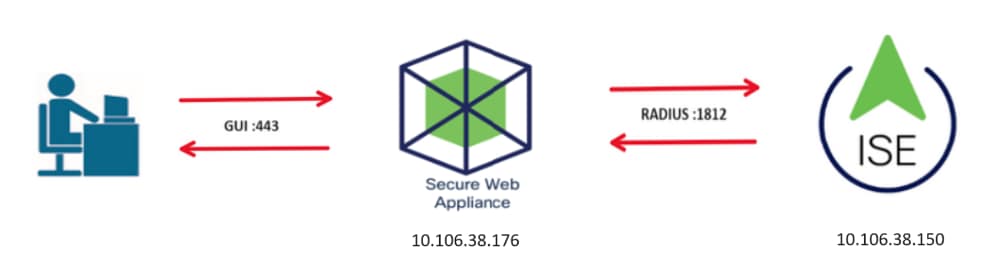 Image- Network Topology Diagram
Administrative users access SWA on port 443 with their credentials and SWA verifies the credentials with the RADIUS server for second factor authentication.
Configuration Steps
ISE Configuration
1. Add a new Network Device and navigate to Administration > Network Resources > Network Devices > +Add.
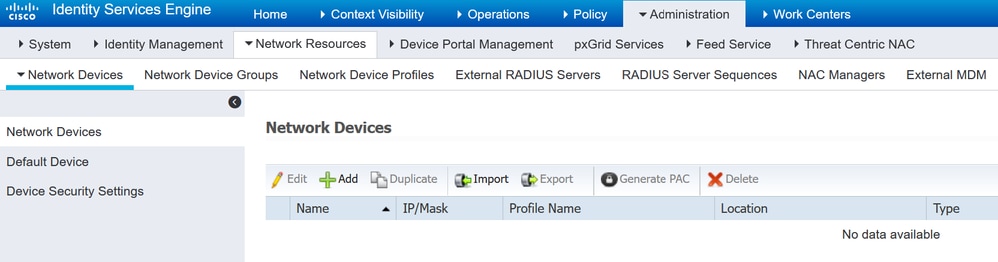 Add SWA as Network Device in ISE
2. Configure Network Device in ISE
2.1. Assign a Name to the network device object.
2.2. Insert the SWA IP Address.
2.3. Select the RADIUS checkbox.
2.4. Define a Shared Secret.

Note: The same key must be used later to configure the SWA.
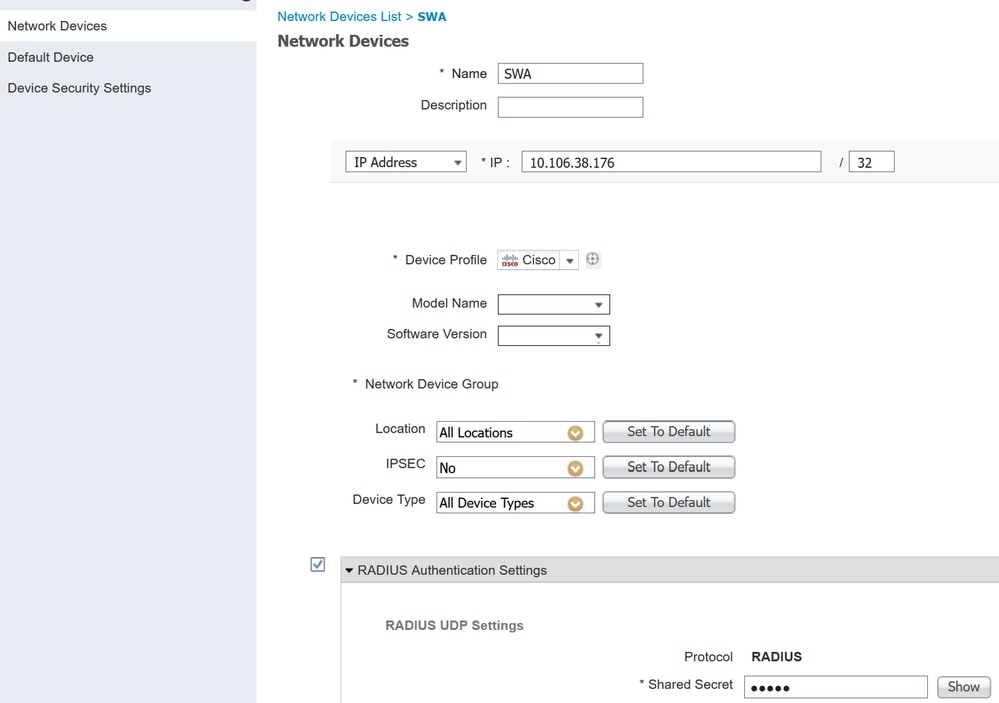 Configure SWA Network Device Shared Key
2.5. Click Submit.
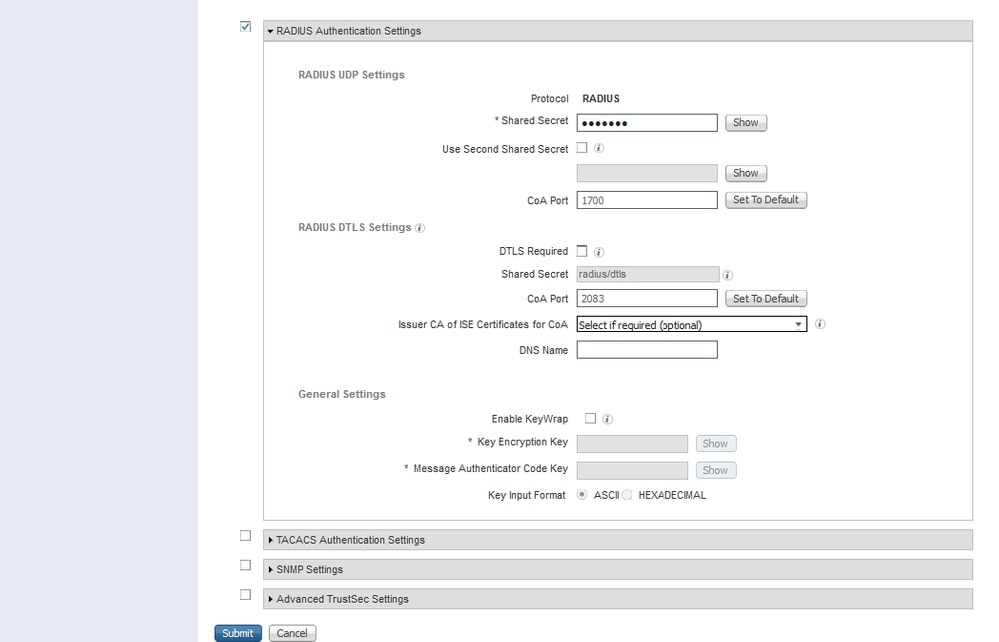 Submit Network Device Configuration
3. You must create Network Access Users that match with the username configured in SWA. Navigate to Administration > Identity Management > Identities > +Add.
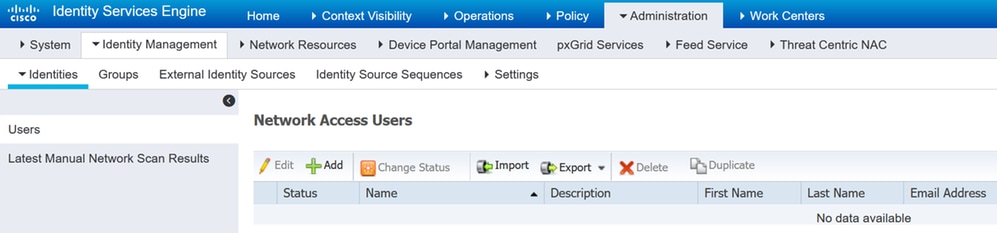 Add Local Users in ISE
3.1. Assign a Name.
3.2. (Optional) Enter the Email address of the user.
3.3. Set Password.
3.4. Click Save.
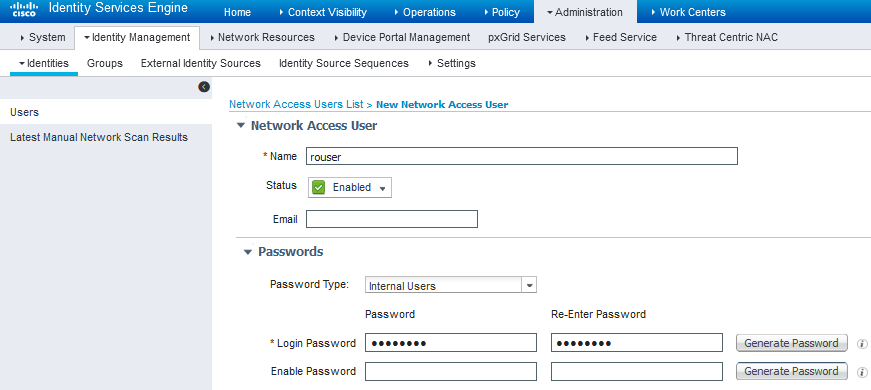 Add a local User in ISE
4. Create a policy set that matches the SWA IP Address. This prevents access to other devices with these user credentials.
4.1. Navigate to Policy > Policy Sets and click the + icon placed at the upper-left corner.
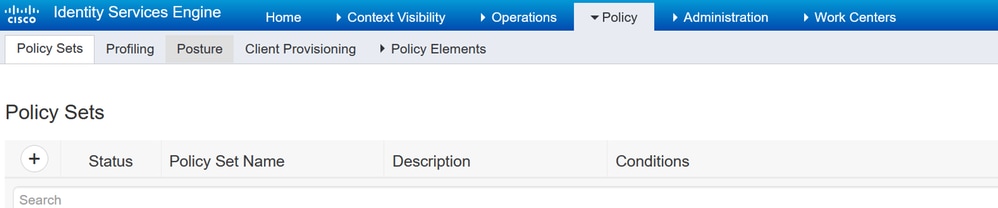 Add Policy Set in ISE
4.2. A new line is placed at the top of your Policy Sets. Enter a Name for the new policy.
4.3. Add a condition for the RADIUS NAS-IP-Address attribute to match the SWA IP Address.
4.4. Click Use to keep the changes and exit the editor.
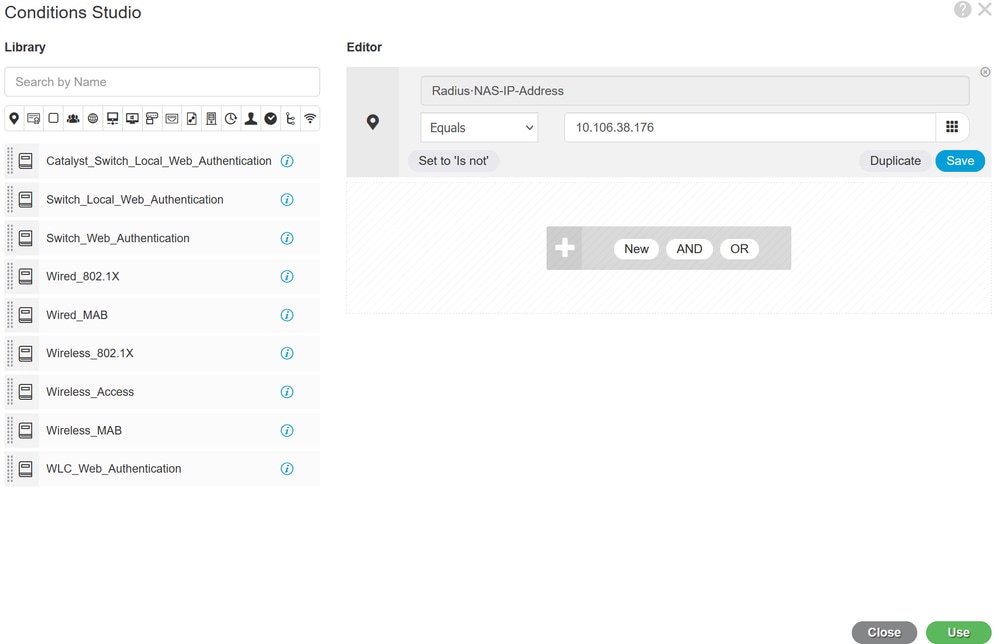 Add Policy to Map SWA Network Device
4.5. Click Save.
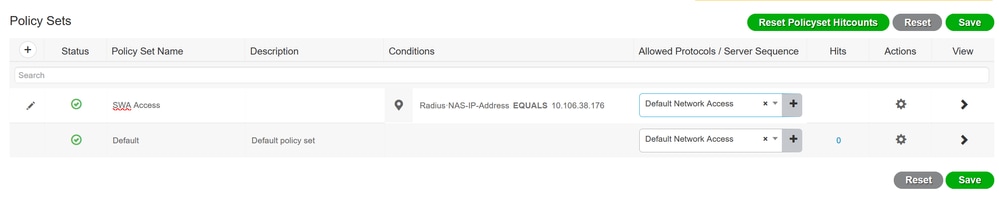 Policy Save
Note: This example uses the Default Network Access Protocols list. You can create a new list and narrow it down as needed.
5. To view the new Policy Sets, click the > icon in the View column.
5.1. Expand the Authorization Policy menu and click the + icon to add a new rule to allow access to all authenticated users.
5.2. Enter a Name.
5.3. Set the conditions to match the Dictionary Network Access with Attribute AuthenticationStatus Equals AuthenticationPassed and click Use.
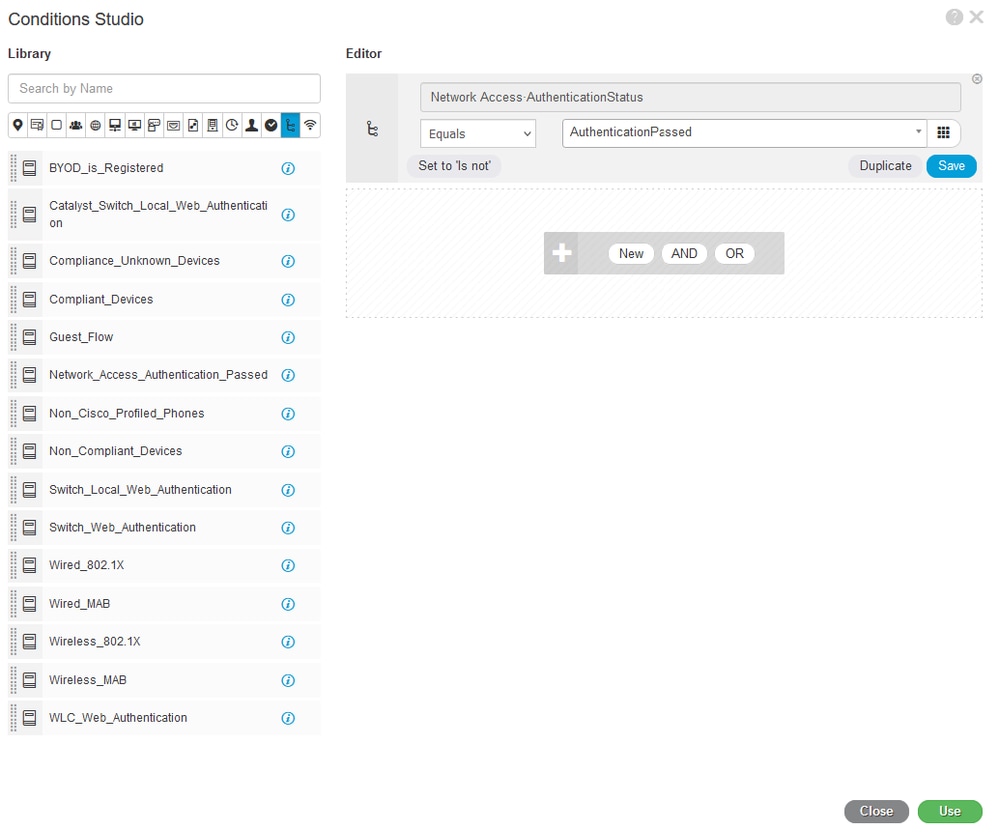 Select Authorization Condition
6. Set the default PermitAccess as Authorization Profile and click Save.
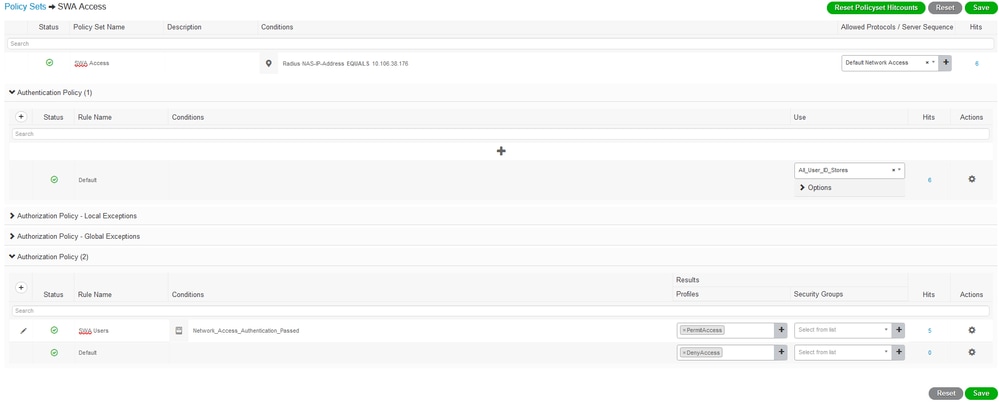 Select Authorization Profile
SWA Configuration
1. From the SWA GUI, navigate to System Administration and choose Users.
2. Click Enable in the Second Factor Authentication Settings.
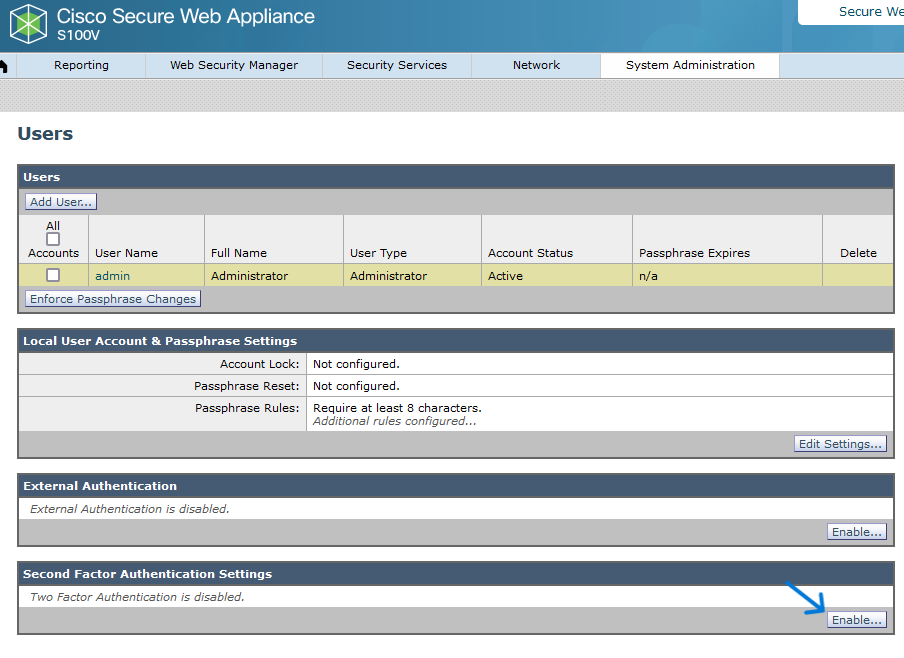 Enable Second Factor Authentication in SWA
3. Enter the IP Address of the ISE in the RADIUS Server Hostname field and enter the Shared Secret that was configured in Step 2 of the ISE Configuration.
4. Select the Predefined Roles you want to enable second-factor enforcement.

Caution: If you enable second factor authentication in SWA, the default Admin account is also enabled for second-factor enforcement. You must integrate ISE with LDAP or Active Directory (AD) to authenticate Admin credentials as ISE does not allow you to configure Admin as an Network Access User.
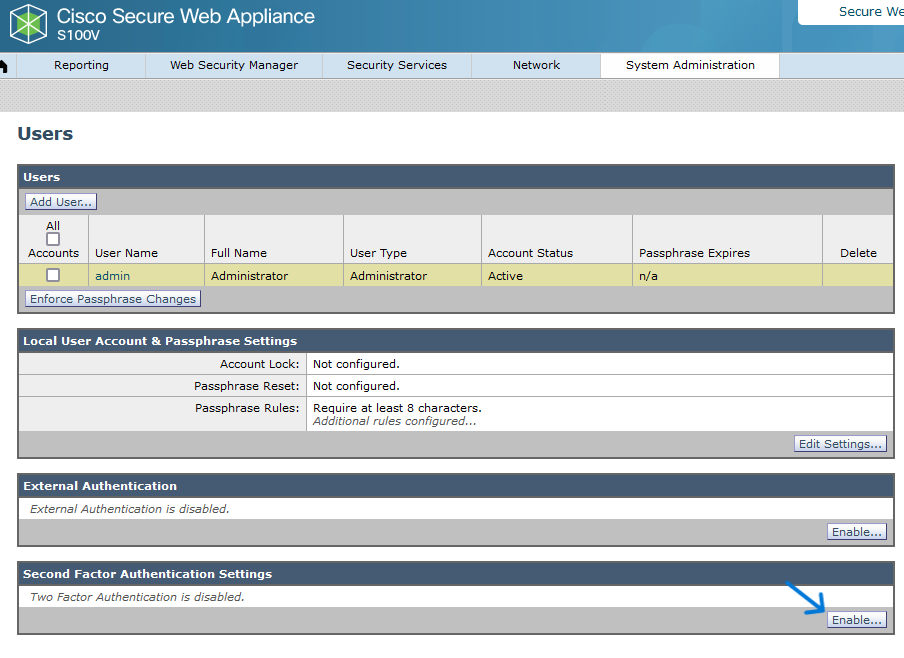 Enable Second Factor Authentication in SWA
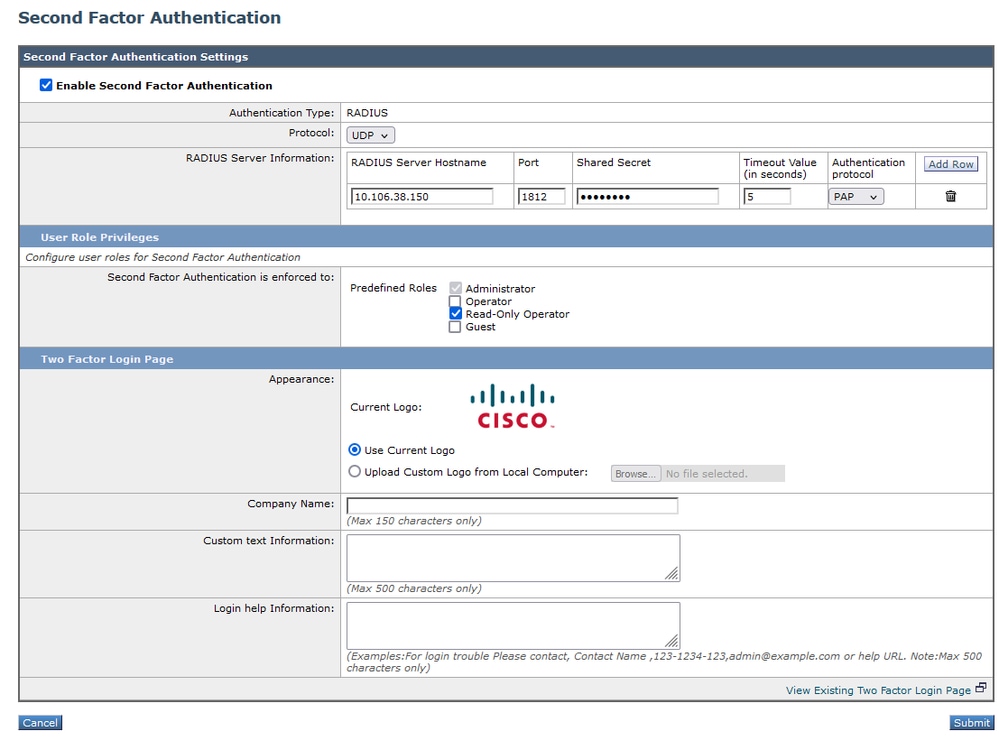 Configure Second Factor Authentication
5. To configure Users in SWA, click Add User. Enter the User Name and select the User Type required for the desired role. Enter the Passphrase and Retype the Passphrase.
 User configuration in SWA
6. Click Submit and Commit Changes.
Verify
Access the SWA GUI with the configured user credentials. After successful authentication, you are redirected to a secondary authentication page. You must enter the secondary authentication credentials configured in ISE.
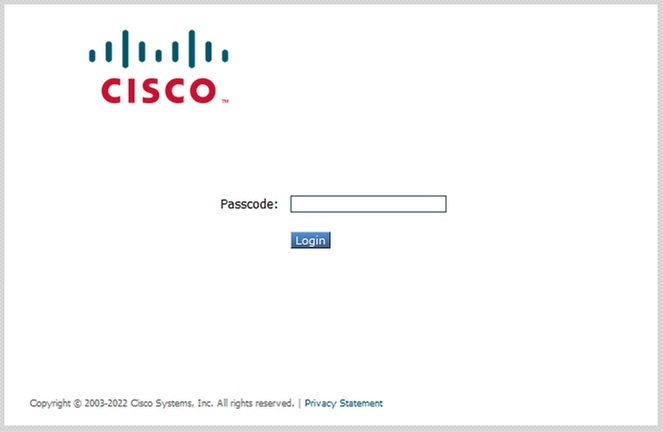 Verify Second Factor Login
Related Content
- User Guide for AsyncOS 14.0 for Cisco Secure Web Appliance
- ISE 3.0 Admin Guide
- ISE Compatibility Matrix for Secure Web Appliance
- Integrate AD for ISE GUI and CLI Log in
Revision History
| Revision | Publish Date | Comments |
|---|---|---|
2.0 |
22-Oct-2026
|
Updated Introduction, spelling, grammar, spacing, inserted horizontal lines to separate sections for readability, alt text, fixed URLs and CCW alerts. |
1.0 |
06-Feb-2024
|
Initial Release |

 Feedback
Contact Cisco
- Open a Support Case

- (Requires a Cisco Service Contract)