Troubleshoot Smart License in Secure Web Appliance
Available Languages
Contents
Introduction
This document describes the steps to configure and troubleshoot Smart License in Secure Web Appliance (SWA).
Prerequisites
Requirements
Cisco recommends that you have knowledge of these topics:
- How Smart License works
- Secure Web Appliance (SWA) Administration
Cisco recommends that you have:
- Physical or Virtual Secure Web Appliance (SWA) Installed
- Administrative Access to SWA
- Access to Cisco Smart License Portal
Components Used
This document is not restricted to specific software and hardware versions.
The information in this document was created from the devices in a specific lab environment. All of the devices used in this document started with a cleared (default) configuration. If your network is live, ensure that you understand the potential impact of any command.
Cisco Smart License
Smart Licensing provides the ability to:
- Manage all your product licenses from a central location.
- Normalizes the process between Physical and Virtual Email Security Appliance (ESA) / Security Management Appliance (SMA) / SWA with the use of one method to apply and manage licenses.
- Easily apply a license to your ESA/SMA/SWA.
- Receive alerts related to license expiration.
- Hardware model ESA/SMA/SWA, out of the box, have a 90-day Evaluation Period for all services.
To register SWA with smart licensing, the owner of the appliance must have a Smart Account:
- Smart Accounts are issued one per domain.
- The administrator of the Smart Account can create sub-level Virtual Accounts that allow segregation of resources.
- Virtual Accounts can be used to restrict access to different Cisco Product Licenses, based on your needs.
- Access the Cisco Smart Software Manager (CSSM) to manage licenses and download tokens.
The links to resources provided by Cisco, include videos, guides, and explanations related to Smart Licensing:
- Create New Smart Account or Request to add a user to an existing account
- Smart Software Licensing Overview Cisco WebPage
- Smart Licensing Deployment Guide
- Cisco Smart Software Manager (CSSM)
- Generate License Key File from PAK File for Email Security - Cisco
Smart Software Manager Satellite
Cisco Smart Software Manager satellite is a component of Cisco Smart Licensing. CSSM Satellite works in conjunction with CSSM to manage product licenses, provide near real-time visibility and reporting of Cisco licenses in use.
For security reasons, if you do not want to manage the installed base with Smart Software Manager residing on Cisco.com, you can choose to install the Smart Software Manager satellite on premises.
For more information on Smart Software Manger Satellite, refer to Cisco Smart Software Manager - Cisco.
Definitions Related to Smart License
License Types:
- Classic License (CL) refers to the legacy methods used for both hardware and virtual licenses.
- Smart License (SL)
License Authorization Status: The status of a given license within the appliance.
- The ESA/SWA/SMA does not display the actual expiration date with the Smart Licenses page.
- Location: GUI > System Administration > Licenses
- Location: CLI > License_smart > SUMMARY
The status of a specific feature appears with one of these values:
- Eval:
- SL Service has been enabled on a new (Hardware) ESA/SMA without a token registration.
- SL Service has been enabled on an appliance with a current CL installed.
- Eval Expired: 90-Day Evaluation Smart License has expired and the appliance has transitioned to the additional 30-day grace period.
- In-Compliance: The appliance has been registered with a token and currently the feature consumes a valid license.
- Out of Compliance (Grace Period): Can be observed in two scenarios:
- One-click request for a temporary 30-day feature license is in use.
- A license has expired on the appliance and the 30-day grace period has initiated.
- Out-of-Compliance (Expired): License has fully expired and the associated service ceases to function.

Note: A Perpetual key indicates there is no expiration period for that feature. A Dormant key indicates the feature has an End-User License Agreement (EULA) that must be accepted, or the feature must be configured and enabled. Once completed, the feature moves to Active, and the expiration timer begins.
Configure Smart License in Secure Web Appliance
You can connect SWA to Smart License via both the Graphical User interface (GUI) and Command Line Interface (CLI).
Before You begin

Caution: Enablement of the Smart License Feature on the ESA/SMA/SWA is permanent and does not permit the option to revert an appliance back to Classic License Mode.
- All hardware model SWA purchased includes 90-days of Evaluation Licenses for all features.
- All hardware models that migrate with current Classic Licenses (CL) to Smart Licenses, receive 90-days of Evaluation licenses.
- All Virtual SWA models require a basic Virtual License (VLN) which is an XML file, loaded to the appliance from the CLI loadlicense command, to link to the upgrade/update server.
- All Virtual SWA models, when created, do NOT include 90-day licenses and require registration by the Classic License VLN (sometimes called XML) file.
- All Virtual SWA models that migrate with current Classic Licenses (CL) include 90-day Evaluation licenses.
- Currently SWA has Smart License in all release builds as an optional feature.
- Once Smart License is enabled, then Classic License is not used on that box.
- Classic License cannot be retained once Smart License is enabled.
- In SWA version15.0 and newer release builds, there is an option to directly enable Smart License without Classic License enablement. The licenses must be purchased and configured to use SWA with the Smart License.
- From the 15.0 release build, there is a 30-day grace period for fresh installation and registration of Smart License without any Classic License activation.
- In the latest release build of the 15.1 release, Smart License is mandatory to enable for SWA to function properly. Also, all Classic License-related features are removed in the latest release.
- By upgrading to Smart License mandate builds, SWA is restricted at the time of download if Smart Licese is not enabled in the base build.
Changes in CLI and GUI Display
In CLI for Classic License four commands were used. Hence, in Smart License Mandate builds (15.1 and newer) those commands are removed.
Review the list of the CLI commands removed:
- loadlicense
- showlicense
- featurekey
- featurekeyconfig
In GUI for Classic License, two pages are mentioned in the System Administration tab. In the Smart License Mandate builds, those pages are removed.
List of GUI pages removed:
- Feature key settings
- Feature key
Reset and Reload
Reset Configuration in SWA performs factory reset where the entire configuration is wiped out and SWA reverts to its factory state. With Smart License mandate, the build has the same behavior, which is retained.
Reload is a CLI hidden command that wipes out the configuration data and removes the feature keys. If SWA was registered with the Classic License and a reload was performed, load the license again.
If SWA was configured with Smart License, after the reload, the Smart License is de-registered and disabled along with a factory reset in the current SWA behavior.
In the SWA mandate build versions, Smart License never reverts to the disable state, hence the reload command wipes out all configurations. The Smart License stays in the registered state, therefore, request all licenses again.
Communication Requirements
Network or Proxy communication to smartreceiver.cisco.com on TCP port 443. To test the connectivity from SWA, use these steps:
1. Log-in to CLI.
2. Type telnet and press Enter.
3. Choose the interface you are expecting SWA to connect to the Smart License Server.
4. Enter smartreceiver.cisco.com.
5. In the port section, enter 443 and press Enter.
Note: If you have configured Smart Software Manger Satellite, add the Uniform Resource Locator (URL) or Internet Protocol (IP) address associated to that server in Step 4.
This is the sample of successful connection:
> telnet

Please select which interface you want to telnet from.
1. Auto
2. Management (10.48.48.184/24: management.swa1.cisco.com)
3. P1 (192.168.13.184/24: p1.swa1.cisco.com)
4. P2 (192.168.133.184/24: p2.swa1.cisco.com)
[1]> 4

Enter the remote hostname or IP address.
[]> smartreceiver.cisco.com

Enter the remote port.
[23]> 443

Trying 10.112.59.81...
Connected to smartreceiver.cisco.com.
Escape character is '^]'.
This is an example is the sample on a failed connection:
SWA_CLI> telnet

Please select which interface you want to telnet from.
1. Auto
2. Management (10.48.48.184/24: management.swa1.cisco.com)
3. P1 (192.168.13.184/24: p1.swa1.cisco.com)
4. P2 (192.168.133.184/24: p2.swa1.cisco.com)
[1]> 2

Enter the remote hostname or IP address.
[]> smartreceiver.cisco.com

Enter the remote port.
[23]> 443

Trying 10.112.59.81...
telnet: connect to address 10.112.59.81: Operation timed out
Trying 2a04:e4c7:fffe::f...
bind: Invalid argumentNote: To exit telnet, if Ctrl + C does not work, hold Control and then press ] then type q and press Enter.
Configure Smart License from GUI
1. Log in to the GUI and navigate to System Administration.
2. Choose Smart Software Licensing.
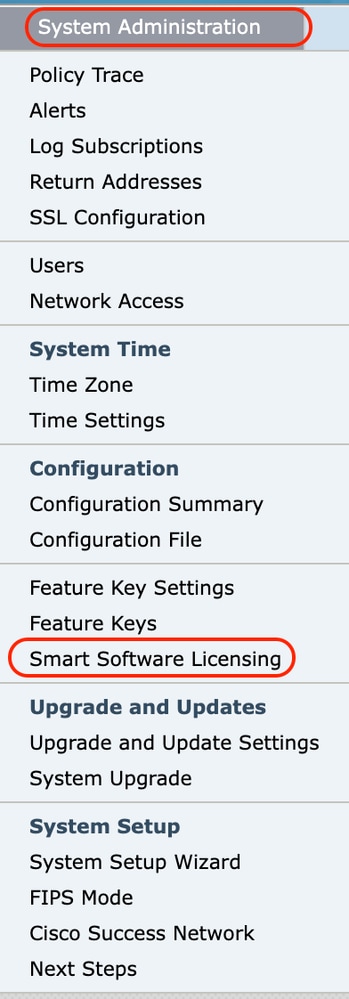 Image- Choose Smart Software Licensing
3. Choose Enable Smart Software Licensing.
 Image- Choose Enable Smart Software Licensing
4. Read the instructions carefully and click OK.
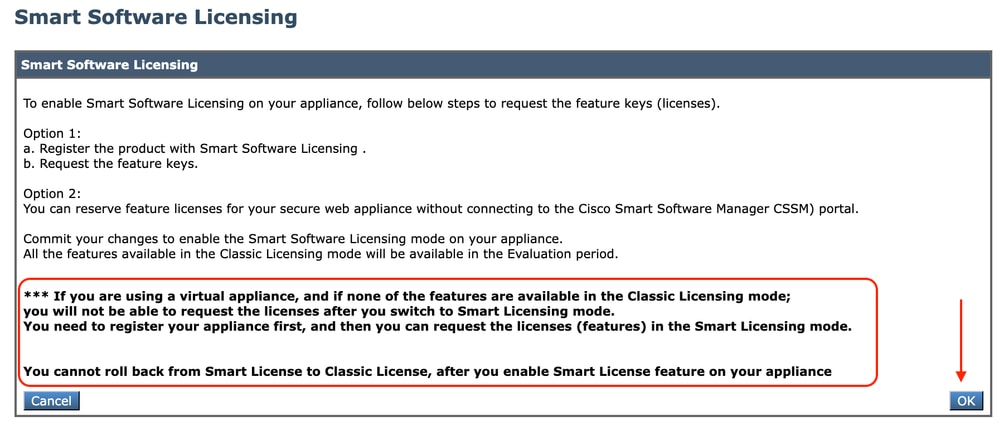 Image- Read the instructions carefully
Caution: You cannot roll back from Smart License to Classic License, after you enable Smart License feature on your appliance.
5. Commit the changes.
6. Wait for some time, then refresh the Smart Licensing page.
7. Select Smart License Registration and click Confirm.
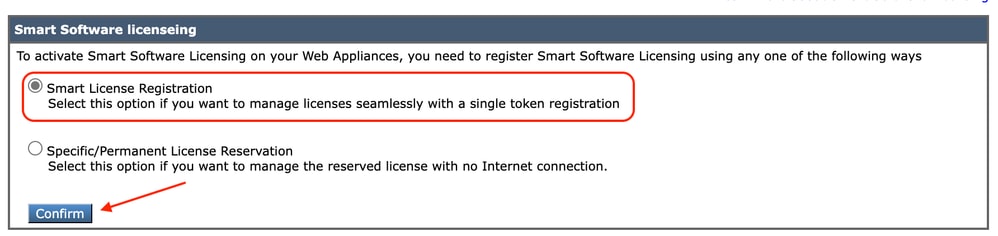 Image- choose Smart License Registration
8. (Optional): If you have Smart Software Manager Satellite in your network, add the URL or IP address of the server in Transport Settings.
9. If you have a separate routing table, and you do not have access to the Smart Receiver from the Management interface; choose Data from the Test Interface section.
By default, Management Routing table is selected.
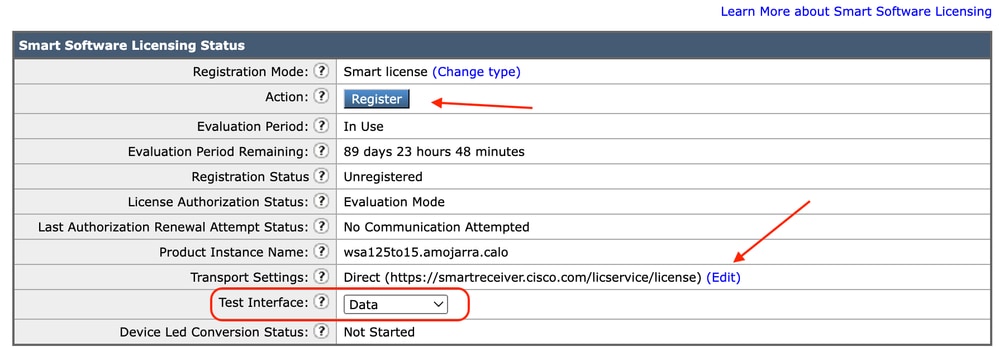 Image - choose Routing table
10. Choose Register to navigate to the Registration Page.
11. Log in to your Smart Software Manager portal (Cisco Software Central) or your Smart Software Manager satellite.
12. Navigate to Inventory tab and, if you do not have a token yet, generate a new token. Or click the blue arrow to view your token.
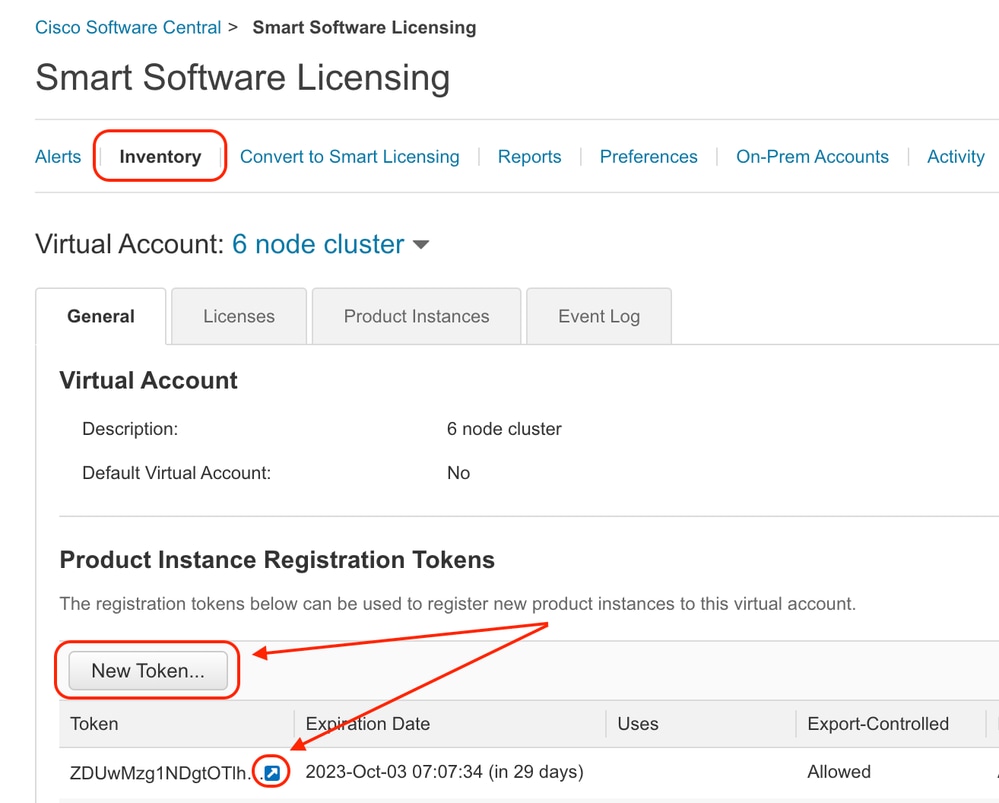 Image - Navigate to Inventory
13. (Optional): To create a registration token, choose New Token and fill the required fields.
14. Paste the token from Smart License portal to your SWA and choose Register.
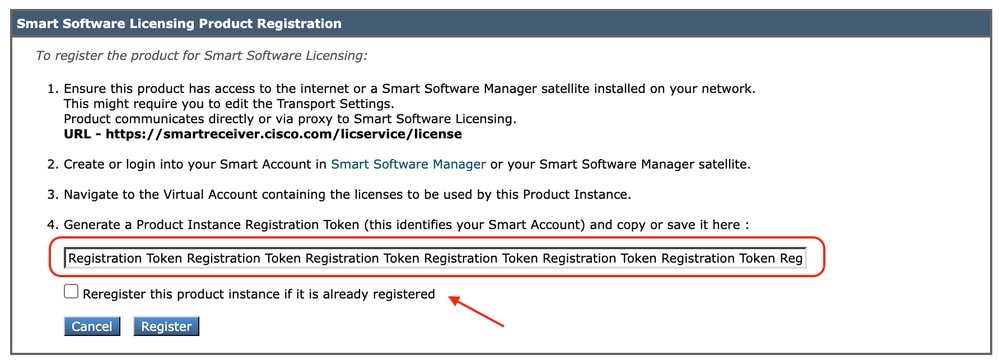 Image - Paste the Registration Token
15. (Optional): If the device has already been registered, you can re-register the device if you select the check box.
16. After a few minutes, you can check the registration status.
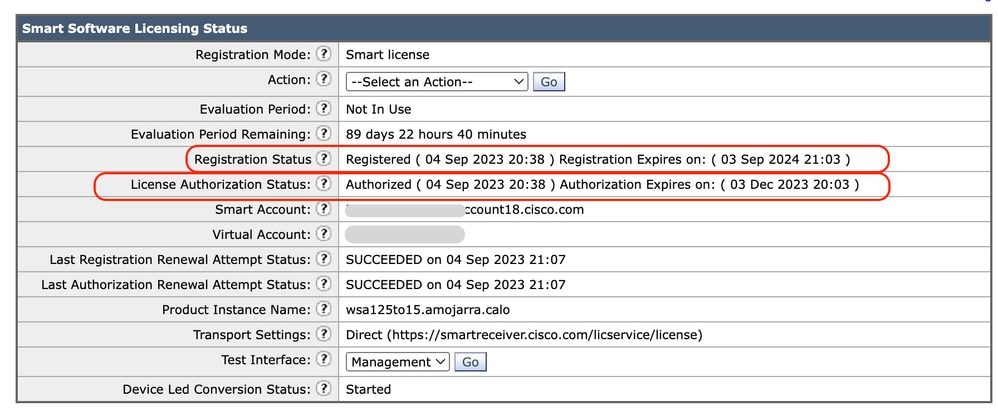 Image - Registered Appliance
Verify the Integration
You can verify the integration from GUI, CLI, or the Smart License Portal.
Verify Smart License Status from GUI
1. Log in to GUI and navigate to System Administration.
2. Choose Smart Software Licensing.
3. Check these items:
- Registration Status
- License Authorization Status
- Last Registration Renewal Attempt Status
- Last Authorization Renewal Attempt Status
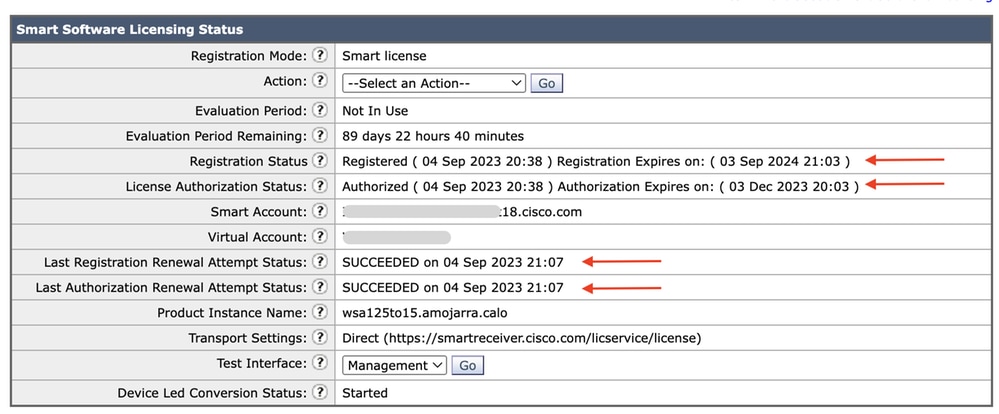 Image - Verify Smart License in GUI
4. From System Administration menu, choose Licenses.
5. Check the desired licenses are In Compliance.
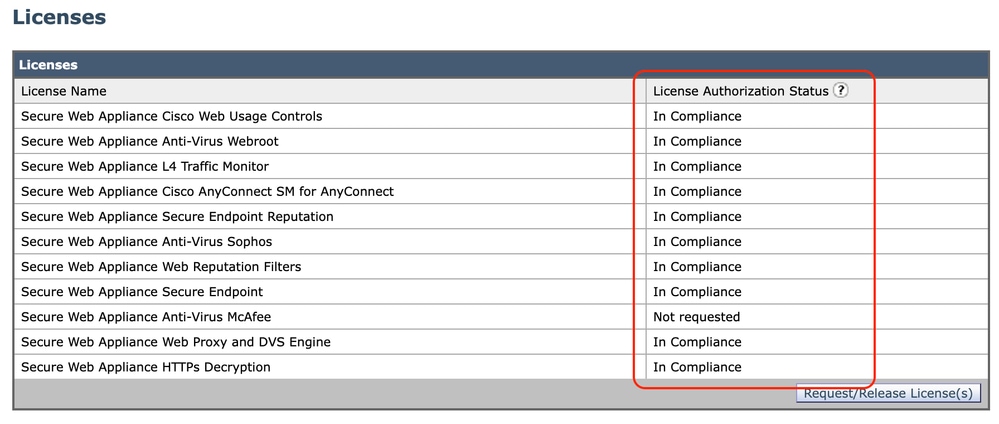 Image -License Status
Verify Smart License Status from CLI
Use these steps to verify the Smart License status from CLI:
1. Log in to the CLI.
2. Enter license_smart.
3. Select STATUS.
4. Verify these items:
- Registration Status
- License Authorization Status
- Last Registration Renewal Attempt Status
- Last Authorization Renewal Attempt Status
Smart Licensing is : Enabled

License Reservation is: Disabled
Evaluation Period: Not In Use
Evaluation Period Remaining: 89 days 22 hours 40 minutes
Registration Status: Registered ( 04 Sep 2023 20:38 ) Registration Expires on:  ( 03 Sep 2024 21:03 )
Smart Account: XXXXXXXXXXXX18.cisco.com
Virtual Account: XXXXXXXXX
Last Registration Renewal Attempt Status: SUCCEEDED on 04 Sep 2023 21:07
License Authorization Status: Authorized ( 04 Sep 2023 20:38 ) Authorization Expires on:  ( 03 Dec 2023 20:03 )
Last Authorization Renewal Attempt Status: SUCCEEDED on 04 Sep 2023 21:07
Product Instance Name: wsa125to15.amojarra.calo
Transport Settings: Direct (https://smartreceiver.cisco.com/licservice/license)
Device Led Conversion Status: Started
5. From the license_smart wizard, enter SUMMARY.
[]> SUMMARY

Feature Name                                                        License Authorization Status
----------------------------------------------------------------------------------------------------
Secure Web Appliance Cisco Web Usage Controls                          In Compliance
Secure Web Appliance Anti-Virus Webroot                                In Compliance
Secure Web Appliance L4 Traffic Monitor                                In Compliance
Secure Web Appliance Cisco AnyConnect SM for AnyConnect                In Compliance
Secure Web Appliance Secure Endpoint Reputation                        In Compliance
Secure Web Appliance Anti-Virus Sophos                                 In Compliance
Secure Web Appliance Web Reputation Filters                            In Compliance
Secure Web Appliance Secure Endpoint                                   In Compliance
Secure Web Appliance Anti-Virus McAfee                                 Not requested
Secure Web Appliance Web Proxy and DVS Engine                          In Compliance
Secure Web Appliance HTTPs Decryption                                  In Compliance
6. Check the desired licenses are In Compliance.
Verify Device Status in Smart License Portal
1. Log in to the Smart Software Licensing Portal: Cisco Software Central.
2. Select Inventory tab.
3. Choose Product Instances.
4. Verify your device is listed and click on the device name.
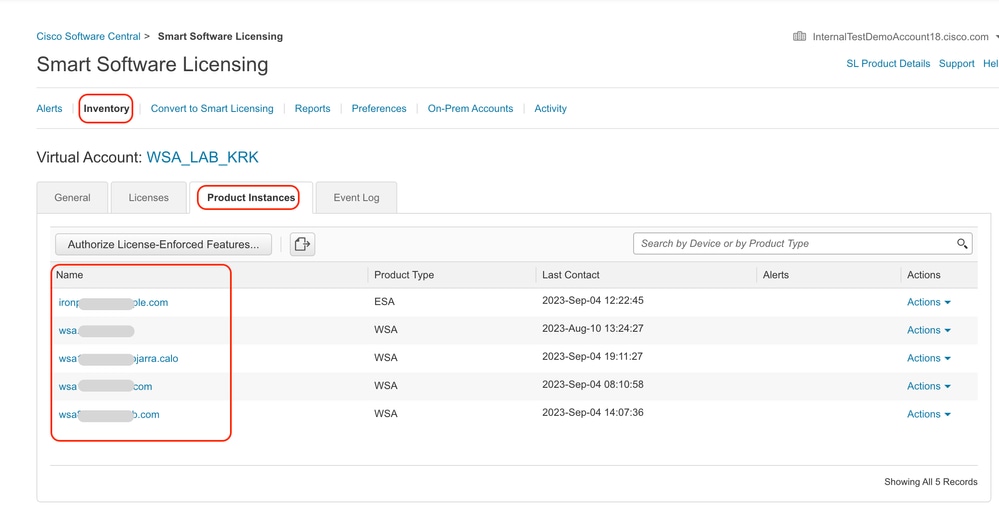 Image - Verify Device Status in Smart License Portal
5. Observe the Feature Keys and device status in General tab.
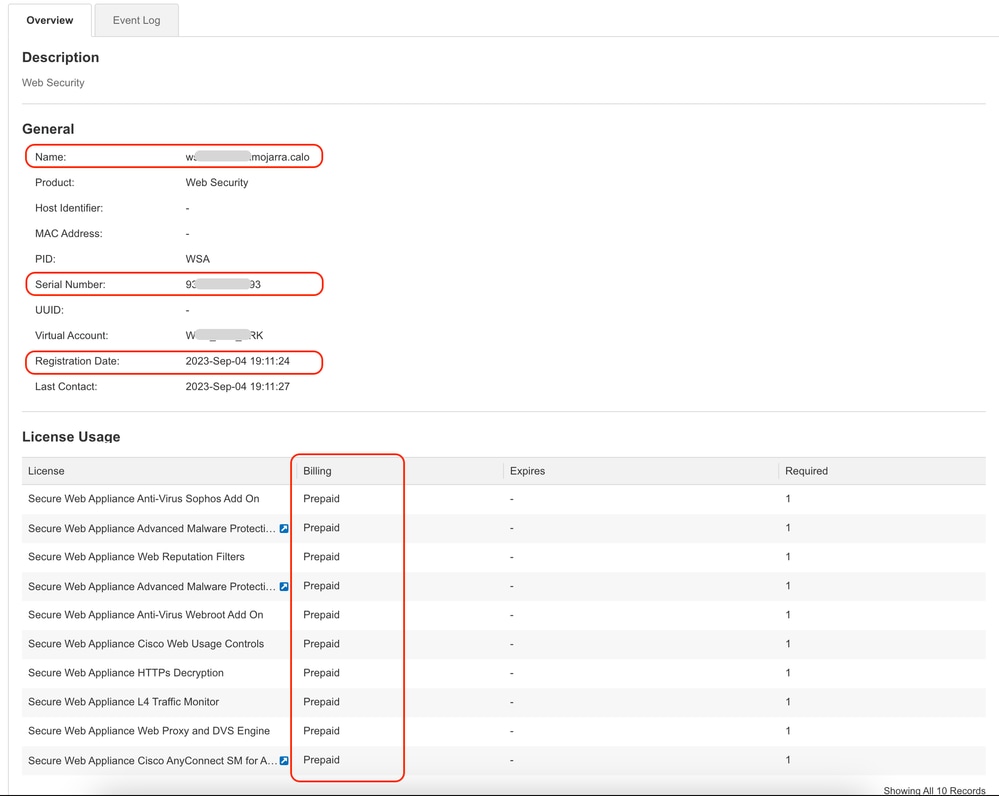 Image - Verify the Feature Keys in Smart License Portal
Find VLN from CLI
To view your VLN from the CLI, run the smartaccountinfo command. You can view some extra information such as Virtual Account Domain or ID and Product Instances.
> smartaccountinfo

Smart Account details
---------------------

Product Instance ID       : 609XXXXXXXX-fXXXXXXXXX55
Smart Account Domain      : XXXXXXXXXXXXXXXXXXX18.cisco.com
Smart Account ID          : 111111
Smart Account Name        : XXXXXXXXXXXXXXXXXXX18.cisco.com
VLN                       : VLNWSA1111111
Virtual Account Domain    : WSA_XXXXX
Virtual Account ID        : 111111
Logging
All logs related to Smart License are collected in Smartlicense logs. This log is enabled by default.
Use these steps to configure the Smart License log:
1. Log in to GUI.
2. From the System Administration Menu, select Log Subscriptions.
3. Select Smartlicense Logs.
4. Click on the log name to edit the configuration.

Tip: If you want to push the logs to your log collector server, it is advised to create a new Log Subscriptions and forward those logs, to have copy of logs locally on the SWA
Troubleshoot Smart License
These are common errors and the steps to resolve the issue.
Successful Connection
This is an example of smart_license logs with a successful response:
Mon Sep 4 20:39:32 2023 Info: The product is registered successfully with Smart Software Manager.Registration Failed
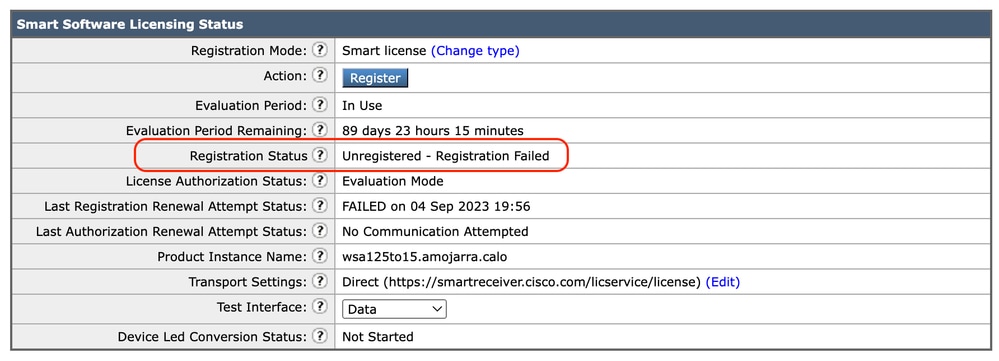 Image - Registration Failed
If Registration Failed is returned, check the smart_license logs from CLI using these steps:
1. Log in to CLI.
2. Enter grep.
3. Find the number associated with smartlicense logs and enter the number.
4. Hit Enter until you see the logs.
Communication Send Error
If you see "Communication send error", check the connectivity between SWA and Smart License Server on port TCP 443.
Mon Sep 4 19:57:09 2023 Warning: The registration of the product with Smart Software Manager failed. The response from Smart Software Manager is: Communication send error. Tip: If you configured Smart Software Manager Satellite, verify the connectivity to the configured port number.
To check the connectivity, use the steps provided in the Communication Requirements section in this article.
Also in display alerts, you can see the same error message:
04 Sep 2023 20:19:29 +0200 The registration of the product with Smart Software Manager failed. The response from Smart Software Manager is: Communication send error.Token is not Valid
If the token has expired or reached its maximum defined used value, the warning log Token is not valid is returned.
You can verify the error from either the displayalerts command or from the smartlicense logs.
This is a sample error from displayalerts in CLI:
04 Sep 2023 20:26:55 +0200 The registration of the product with Smart Software Manager failed. The response from Smart Software Manager is: Token is not validThis is an example of a log line from the smartlicense logs from CLI:
Mon Sep 4 20:26:55 2023 Warning: The registration of the product with Smart Software Manager failed. The response from Smart Software Manager is: Token is not validTo verify the token validity log in to your Smart License portal, navigate to inventory, check the expiration status and number of use.
 Image - Expier Token
Failed To Renew Authorization
Communication Send Error
If you receive a failed to renew authorization due to a communication send error, this can be due to a connectivity issue. Ensure the correct Routing Table is selected and test the connectivity between SWA and smartreceiver.cisco.com TCP port 443 or your Smart Software Manager Satellite server.
To check the connectivity, use the steps provided in the Communication Requirements section in this article.
You can verify the error with the displayalerts command or from the smartlicense logs
This is an example error from displayalerts in CLI:
04 Sep 2023 22:23:43 +0200 Failed to renew authorization of the product with Smart Software Manager due to Communication send error..This is a sample log line from the smartlicense logs from CLI:
Mon Sep 4 22:22:58 2023 Warning: Failed to renew authorization of the product with Smart Software Manager due to Communication send error..The Certificate is REVOKED
If the reason to renew authorization is the certificate is REVOKED, verify if the device has been removed from the Smart License Portal. Check the Verify Device Status in Smart License Portal section in this article.
Verify the error by running the displayalerts command or from the smartlicense logs.
This is a sample of error from the displayalerts in CLI:
04 Sep 2023 22:39:10 +0200 Failed to renew authorization of the product with Smart Software Manager due to Could not return the certificate for the given sn (111111111) since it is REVOKED..This is an example log line from the smartlicense logs from CLI:
Mon Sep 4 22:39:10 2023 Warning: Failed to renew authorization of the product with Smart Software Manager due to Could not return the certificate for the given sn (1111111) since it is REVOKED..To solve this issue, register the device again.
No VLN in the Device
For physical devices, there is no VLN; the Virtual Licese Number is omly used in virtual appliances. If you are using a virtual SWA and there is no VLN in the output of smartaccountinfo in CLI, try to load the XML license file again with the loadlicense command in CLI.
Caution: The loadlicense command removes all existing feature key (includes evaluation keys) and the license file from the system prior to installs the new license file and keys.
Smart License Agent Service is Unavailable
If you receive this error message, it is due to Cisco bug ID: CSCwe36665 for SWA or Cisco Bug ID: CSCvo22855 for ESA. Contact TAC to implement a workaround.
"Smart license agent service is unavailable. Please visit this page after some time. If you continue to see the same message, please contact Cisco Sales representative."Failed to Verify Signature
If the Smart License Authorization fails with this error:
Tue Apr 22 09:46:27 2023 Warning: Failed to renew authorization of the product with Smart Software Manager due to Failed to verify signature..[First Test] This error can be due to Cisco bug ID: CSCvx04164.
The condition for this bug is the Virtual Account Name on the Smart Licensing portal contains non-English characters, and the workaround for this issue is:
Rename the Virtual Account and remove the non-English characters:
1. Go to software.cisco.com.
2. Navigate to Administration > Manage Smart Account > Virtual Accounts.
3. Click on the virtual account in question.
4. Define a new name and remove the non-English characters.
Note: Users must have administrative rights to rename the virtual account.
[Second Test] If the Virtual Account name is correct, ensure the device is listed in the Smart License portal inventory.
Use the steps provided in the Verify Device Status in Smart License Portal section in this article.
[Third Test] If the device is listed in the Smart License Portal inventory, restart the SWA Smart License service from CLI:
1. Log in to CLI.
2. Run the diagnostic command.
3. Choose SERVICES.
4. Choose SMART_LICENSE.
5. Choose RESTART.
SWA_CLI> diagnostic

Choose the operation you want to perform:
- NET - Network Diagnostic Utility.
- PROXY - Proxy Debugging Utility.
- REPORTING - Reporting Utilities.
- SERVICES - Service Utilities.
[]> SERVICES

Choose one of the following services:
- AMP - Secure Endpoint
- AVC - AVC
- ADC - ADC
- DCA - DCA
- WBRS - WBRS
- EXTFEED - ExtFeed
- L4TM - L4TM
- ANTIVIRUS - Anti-Virus xiServices
- AUTHENTICATION - Authentication Services
- MANAGEMENT - Appliance Management Services
- REPORTING - Reporting Associated services
- MISCSERVICES - Miscellaneous Service
- OCSP - OSCP
- UPDATER - UPDATER
- SICAP - SICAP
- SNMP - SNMP
- SNTP - SNTP
- VMSERVICE - VM Services
- WEBUI - Web GUI
- SMART_LICENSE - Smart Licensing Agent
- WCCP - WCCP
[]> SMART_LICENSE


Choose the operation you want to perform:
- RESTART - Restart the service
- STATUS - View status of the service
[]> RESTART

smart_agent is restarting.
[Fourth Test] Generate a new token in the Smart License Manager Portal and re-register the device.
Smart_agent Stuck in Disabled State
These errors can be seen on an ESA or SMA after upgrading the appliance (which the Smart License was enabled before the upgrade) to version 14.1 or 14.0.
Note: This error is seen on x195 or x395 devices.
This is an example of the message generated by the appliance:
08 Apr 2023 10:19:36 -0500 Initialization of smart agent service failed. Reason : Port 65501 is not available for smart agent service to run. Please try changing port for smart agent service through `license_smart setagentport` cli command or free the port from other service.And in the smart_license logs you can see:
Mon Apr 8 09:02:36 2021 Warning: Smart License: Failed to change the hostname to esa.local for the product.This error is due to Cisco bug ID: CSCvz74874 for ESA and Cisco bug ID: CSCvx68947 for SMA. You must contact Cisco Support to resolve this issue.
Initialization of Smart Agent Service Failed
This error is mostly related to virtual appliances that are configured with more resources than expected. This is an example of the log:
Thu Jun 23 16:16:07 2022 Critical: Initialization of smart agent service failed. Reason : Port 65501 is not available for smart agent service to run. Please try changing port for smart agent service through `license_smart setagentport` cli command or free the port from other service.
any attempts to swap ports using the defined command will fail.
To fix this issue, check the output of the version command in CLI and ensure the number of CPUs and the allocated memory is set to expected. If there are more cores to the appliance than are supported, correct the allocation.
Invalid Response from Licensing Cloud
If the device has been removed from the Smart License Manager Portal, older versions return this error:
Thu Nov 15 13:50:20 2022 Warning: Failed to renew authorization of the product with Smart Software Manager due to Invalid response from licensing cloud..To fix this issue, re-register the appliance and also, review Cisco bug ID: CSCvr09743.
No Valid SSL Certificate was Sent
If you receive this error from your appliance and you cannot retrieve the updates, refer to Field Notice: FN - 72502 for additional information.
21 Aug 2023 14:03:04 +0200    Unable to connect to the Cisco Aggregator Server.
Details: No valid SSL certificate was sent
Traditional VLN certificate files include a certificate created by Talos Keymaster for access to updates and upgrades. The old Keymaster Certificate Authority (CA) expired on 13 January 2023.
VLN certificate files with certificates issued prior to 15 December 2021, with a validity of more than 12 months, must be renewed and applied prior to 13 January 2023.
To solve this issue, contact Cisco license support and ask for a new VLN file.
Feature has been moved to Out of Compliance
If you see some logs that one or some of your Features have been moved to Out of Compliance, verify:
1. You have a Valid License.
2. Appliance has connectivity with the Smart License server (refer to the Communication Requirements section in this article).
3. Check the Smart License logs for further sight on the issue.
4. Contact Cisco Support for assistance.
This is a sample log:
Mon Sep 4 20:41:09 2023 Warning: Secure Web Appliance HTTPs Decryption license has been moved to Out of Compliance successfully.
Mon Sep 4 20:41:10 2023 Warning: The Secure Web Appliance HTTPs Decryption is in Out of Compliance (OOC) state. You have 29 days remaining in your grace period.
Smart Agent is in Authorization Expired State
If you receive the critical error as "Smart Agent is in Authorization Expired state", review the next lines to find the reasons for this state.
This is a sample of the error:
Fri Aug 18 15:51:11 2023 Critical: Web Security Appliance Cisco Web Usage Controls feature will stop working as Smart Agent is in Authorization Expired state. This can happen if there is no communication between the appliance and the Cisco Smart Software Manager (CSSM) for more than 90 days.Check the connectivity and ensure your device is registered in the Smart License Portal.
Related Content
- Cisco Web Security Appliance Best Practices Guidelines - Cisco
- BRKSEC-3303
- User Guide for AsyncOS 14.5 for Cisco Secure Web Appliance - GD (General Deployment) - Connect, Install, and Configure [Cisco Secure Web Appliance] - Cisco
- Cisco Smart Software Manager - Cisco
Revision History
| Revision | Publish Date | Comments |
|---|---|---|
2.0 |
26-Oct-2026
|
Updated spelling, grammar, spacing, inserted horizontal lines to separate sections for readability, alt text, URLs, fixed CCW alerts. |
1.0 |
08-Sep-2023
|
Initial Release |

 Feedback
Contact Cisco
- Open a Support Case

- (Requires a Cisco Service Contract)