Deploy SD-WAN via SD-WAN Lab Deployment Tool and Modeling Labs
Available Languages
Introduction
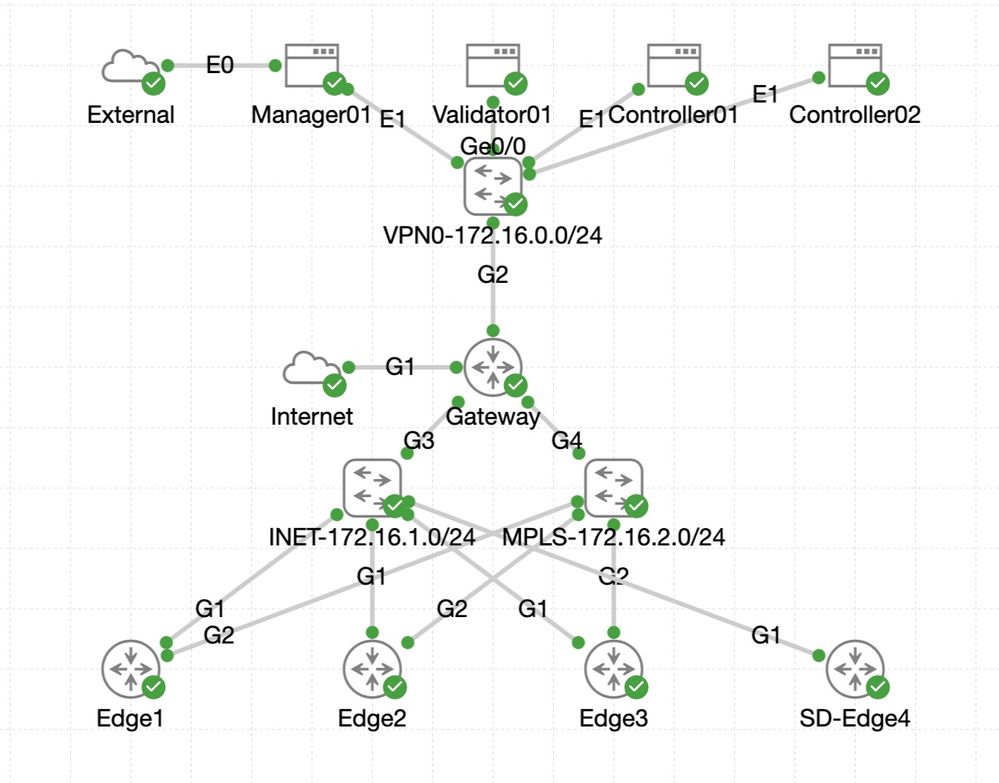
This document describes how to create a Catalyst SD-WAN Fabric in Cisco Modeling Labs using the SD-WAN Lab Deployment Tool (Open source, BSD-3).
Download
Background Information
The SD-WAN Lab Deployment Tool automates SD-WAN fabric creation in CML and dramatically simplifies various steps including adding SD-WAN Edge Routers to the Fabric, certificate installation, and other onboarding tasks. Before the SD-WAN Lab Tool, users had to manually deploy SD-WAN controllers and edge routers in CML. This process is fully automated and takes minutes, not hours; YouTube Demo.
Key Benefits of the Lab Deployment Tools
- Fully automated creation of SD-WAN Controllers
- Add multiple branches with SD-WAN Edge routers in one automated task
- Two SD-WAN Transports; Internet and MPLS
- Ability to introduce latency as WAN Link Emulation
- Backup and Restore capabilities
- Open Source BSD-3 license hosted on GitHub
CML Requirements for SD-WAN Use Cases
- CML can be deployed on bare metal or via virtual machine (ESXi or AWS).
- Supports clustering for increasing capacity.
- The recommended option for SD-WAN Simulation is on-prem CML cluster with a few servers.
SD-WAN Lab Deployment Tool Details
- The tool is currently supported on Linux/MacOS systems as a dependency package (pyats) and is available only for those systems.
- To run the tool on Windows, you need a Linux VM/container or Linux on Windows with WSL. You can find all the dependencies in the pyproject.toml file: SDWAN Lab Deployment Tool.
- See all installation steps, usage examples, and source code on GitHub.
- Ensure the network connection between the host running the Lab Tool and the CML server/cluster is fast enough. This helps during the SW image upload of the SD-WAN Controllers.
- If you have any questions on the SD-WAN Lab Deployment Tool? Send an email to cml-sdwan-lab-tool@external.cisco.com
SD-WAN Lab Deployment Tool in dCloud Environment
This tool works with CML in the dCloud environment. Review these steps to deploy an SD-WAN/SD-Routing lab in the dCloud CML.
1. In the dCloud catalog, find and reserve the CML - Catalyst SD-WAN 26.1 Lab Custom Topologies session.
2. Once the reservation is ready for use, click View > Info > AnyConnect Credentials, and use the Secure Client to VPN into the session.
3. Prepare a file with the environment variables to be used for the SD-WAN Lab Deployment Tool. This is an example file used:

Note: The MANAGER_IP is the IP address for the SD-WAN manager in the dCloud Management network, usually in the 198.18.128.0/18 subnet with a gateway of 198.18.128.1.
(venv) [csdwan] $ more lab_rc.sh
export CML_IP='198.18.134.1'
export CML_USER='admin'
export CML_PASSWORD='C1sco12345!'
export MANAGER_IP='198.18.128.100'
export MANAGER_USER='sdwan'
export MANAGER_PASSWORD='Cisco123!'
export MANAGER_MASK='/18'
export MANAGER_GATEWAY='198.18.128.1'
export LAB_NAME='sdwan'1. Source this file to ensure the environment variables take effect:
(venv) [csdwan] $ source lab_rc.sh
(venv) [csdwan] $
(venv) [csdwan] $ env | grep "CML\|MANAGER"
CML_PASSWORD=C1sco12345!
MANAGER_MASK=/18
CML_IP=198.18.134.1
CML_USER=admin
MANAGER_USER=sdwan
MANAGER_PASSWORD=Cisco123!
MANAGER_GATEWAY=198.18.128.1
MANAGER_IP=198.18.128.1002. Download any qcow2 images not available in the dCloud CML image definition to the directory where the tool is running from, and run setup to add new image definitions in CML:
(venv) [csdwan] $ ls -l *qcow2
-rw-r--r--@ 1 cisco  staff  1849884672 Sep 20 12:12 c8000v-universalk9_16G_serial.17.15.01a.qcow2
-rw-r--r--@ 1 cisco  staff   360185856 Sep 10 16:26 viptela-bond-20.15.1-genericx86-64.qcow2
-rw-r--r--@ 1 cisco  staff   360185856 Sep 10 16:09 viptela-smart-20.15.1-genericx86-64.qcow2
-rw-r--r--@ 1 cisco  staff  4717608960 Sep 10 16:09 viptela-vmanage-20.15.1-genericx86-64.qcow2
(venv) [csdwan] $
(venv) [csdwan] $ sdwan-lab setup --list
Verifying software images...Uploading viptela-bond-20.15.1-genericx86-64.qcow2
 |##################################################| 360185856/360185856 100.0% [00:00:22]
Upload completed
Uploading viptela-vmanage-20.15.1-genericx86-64.qcow2
 |##################################################| 4717608960/4717608960 100.0% [00:04:59]
Upload completed
<snip>
Upload completed
Setup task done
Available Software Versions:
- cat-sdwan-manager: ['20.12.3', '20.14.1', '20.15.1', '20.9.5.2']
- cat-sdwan-controller: ['20.12.3', '20.14.1', '20.15.1', '20.9.5.1']
- cat-sdwan-validator: ['20.12.3', '20.14.1', '20.15.1', '20.9.5.1']
- cat-sdwan-edge: ['17.09.05a', '17.12.03', '17.14.01a', '17.15.01a']
3. Deploy the lab:
(venv) [csdwan] $ sdwan-lab deploy 20.15.1
Deploy task done
#############################################
Lab is deployed.
CML URL: https://198.18.134.1
SD-WAN Manager URL: https://198.18.128.100:443
Use the username/password set with the script for CML and SD-WAN Manager login.
All other nodes use default username/password.
#############################################
4. Add SD-WAN Edges, SD-Routing Edges, or both to the lab topology:
(venv) [csdwan] $ sdwan-lab add 2 edges 17.15.01a
(venv) [csdwan] $ sdwan-lab add 2 sdrouting 17.15.01aNote: Sometimes when deploying Edges, the deployment can appear to be stuck at the Waiting for WAN Edge Onboarding... message. Log into the CML dashboard and check if the control connections on the edges have been established. If not, a reload of the Edge device usually fixes the problem. Confirm this by logging into the SD-WAN Manager dashboard and check the device status.
Troubleshoot
Python Version Mismatch
The Lab Tools requires Python Version 3.11 and later. If you have a different Python version that does not match the package requirement, the installation can fail.
This is an example of a failed installation because of the incorrect Python version:
(venv) [csdwan] $ pip install --upgrade catalyst-sdwan-lab
Collecting catalyst-sdwan-lab
  Downloading catalyst_sdwan_lab-2.0.9-py3-none-any.whl.metadata (20 kB)
...
  Downloading catalyst_sdwan_lab-2.0.6-py3-none-any.whl.metadata (20 kB)
ERROR: Cannot install catalyst-sdwan-lab==2.0.6, catalyst-sdwan-lab==2.0.7, catalyst-sdwan-lab==2.0.8 and catalyst-sdwan-lab==2.0.9 because these package versions have conflicting dependencies.

The conflict is caused by:
    catalyst-sdwan-lab 2.0.9 depends on pyats<24.0 and >=23.1
    catalyst-sdwan-lab 2.0.8 depends on pyats<24.0 and >=23.1
    catalyst-sdwan-lab 2.0.7 depends on pyats<24.0 and >=23.1
    catalyst-sdwan-lab 2.0.6 depends on pyats<24.0 and >=23.1

To fix this you could try to:
1. loosen the range of package versions you've specified
2. remove package versions to allow pip attempt to solve the dependency conflict

ERROR: ResolutionImpossible: for help visit https://pip.pypa.io/en/latest/topics/dependency-resolution/#dealing-with-dependency-conflicts
(venv) [csdwan] $
To fix this issue, use a Python virtual environment to meet the specific Python version requirements.
Revision History
| Revision | Publish Date | Comments |
|---|---|---|
3.0 |
13-Oct-2026
|
Updated spelling, grammar, introduction, inserted horizontal lines to separate sections for readability. |
2.0 |
13-Oct-2026
|
Updated Title, SEO, Target Links, Style Requirements, Machine Translation, and Formatting. |
1.0 |
18-Jun-2024
|
Initial Release |
 Feedback
Contact Cisco
- Open a Support Case

- (Requires a Cisco Service Contract)